Overview
You can not delete a Storefront. This is in order to prevent against accidental deletion. This tutorial explains the alternative to deleting a storefront. However, you can take steps to ensure the storefront is inactive and not inadvertently accessible by your customers.
Configuring the Storefront host in the "LOCKED" mode
If you wish to ensure that an unused storefront is not accessible by the public you can configure it into a "Locked" mode.
To place the storefront into the Locked mode, navigate to the storefront menu for the storefront host you wish to make inaccessible. Then click the "LOCK YOUR STORE" button:
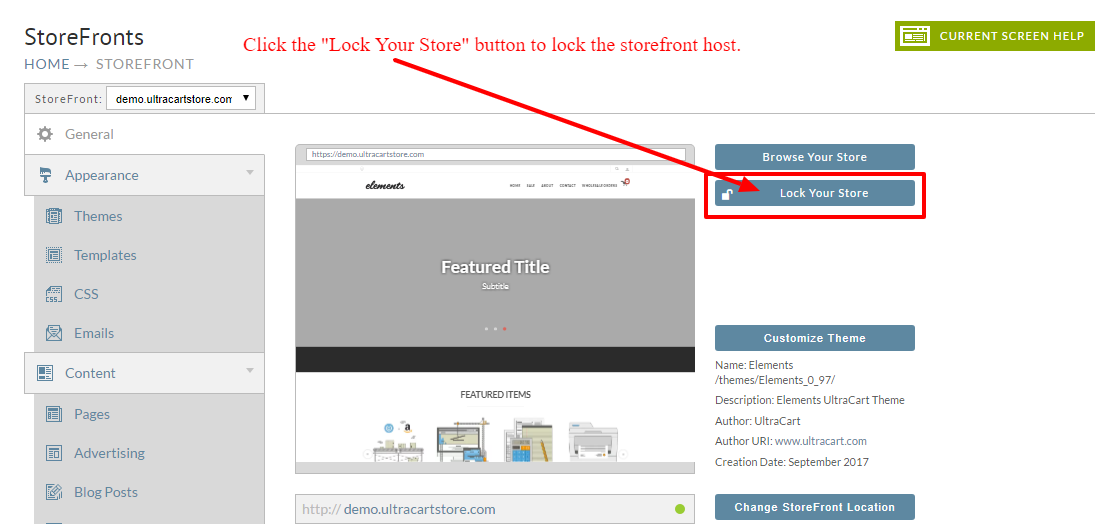
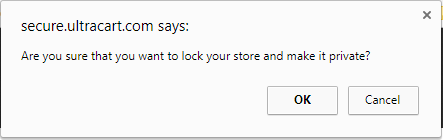
Upon clicking the "Lock Your Store" button, you'll be prompted with a confirmation dialog window, like this:
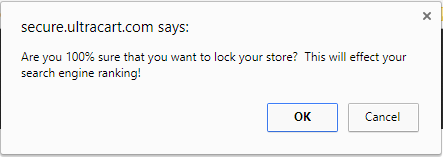
Clicking okay will present a second confirmation dialog window:
Clicking okay to the second dialog window will present the following:
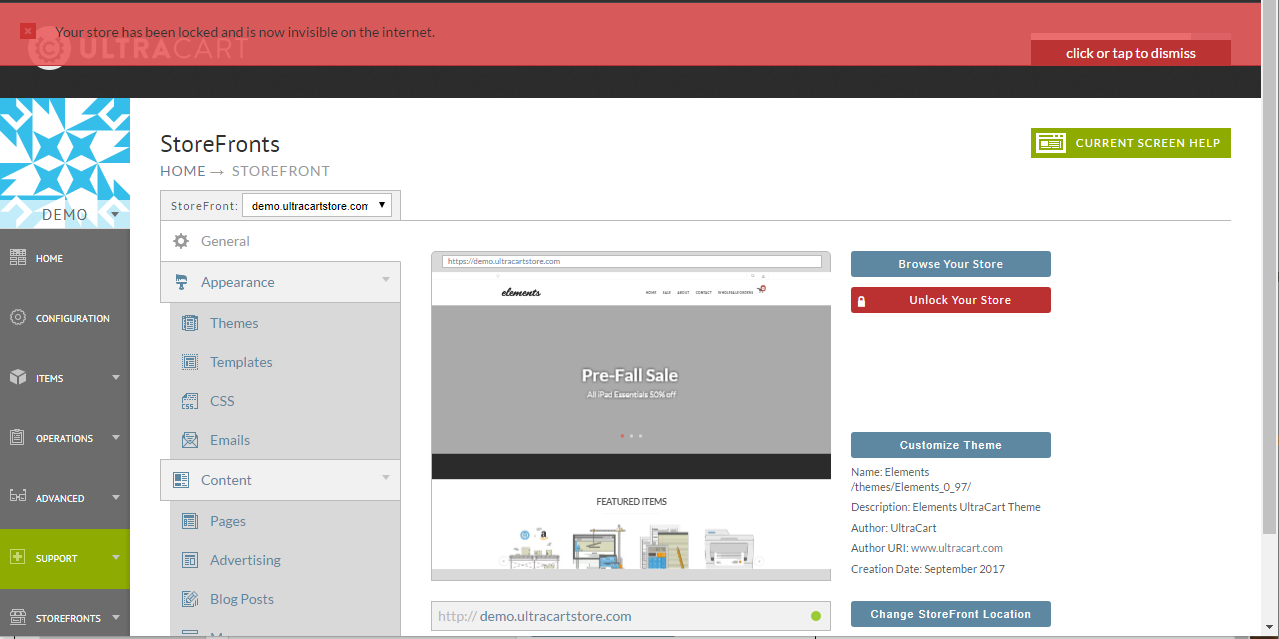
Click the "Click or tap to dismiss" button. You'll then be returned to the general tab of the storefront. Notice the lock button now shows "Unlock your Store":
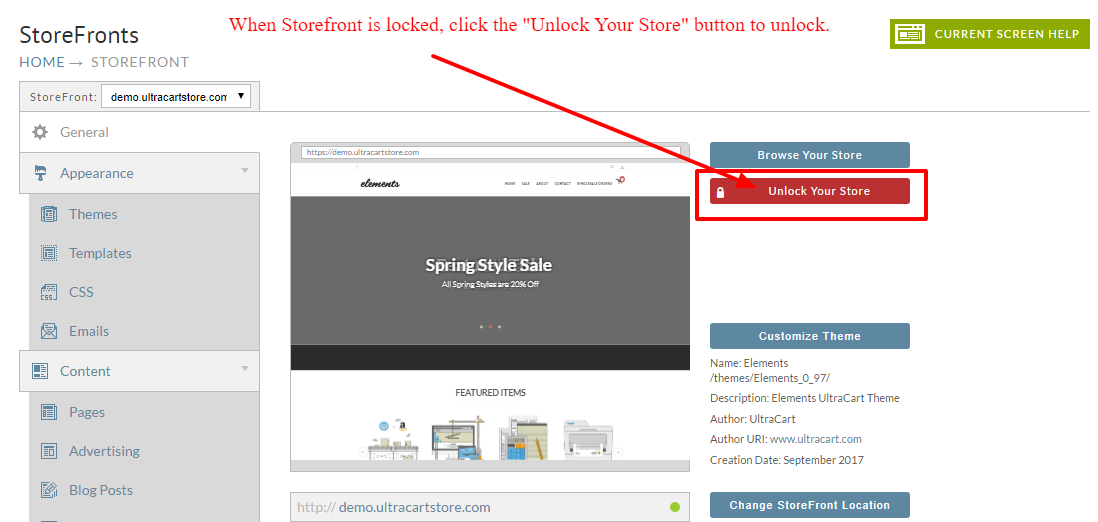
Your storefront is now in locked mode. The locked storefront can only be viewed if the browsing person has been provided the lock code.
The locked view, preview option
if you are logged into your UltraCart account then navigate to view your storefront. You will find the password for viewing the storefront in the top right corner of the window as shown below.

This password prompt does not appear if you visit the page without being actively logged into your UltraCart account.
The following is the view for anyone that is not logged into your UltraCart back-end prior to visiting the storefront.
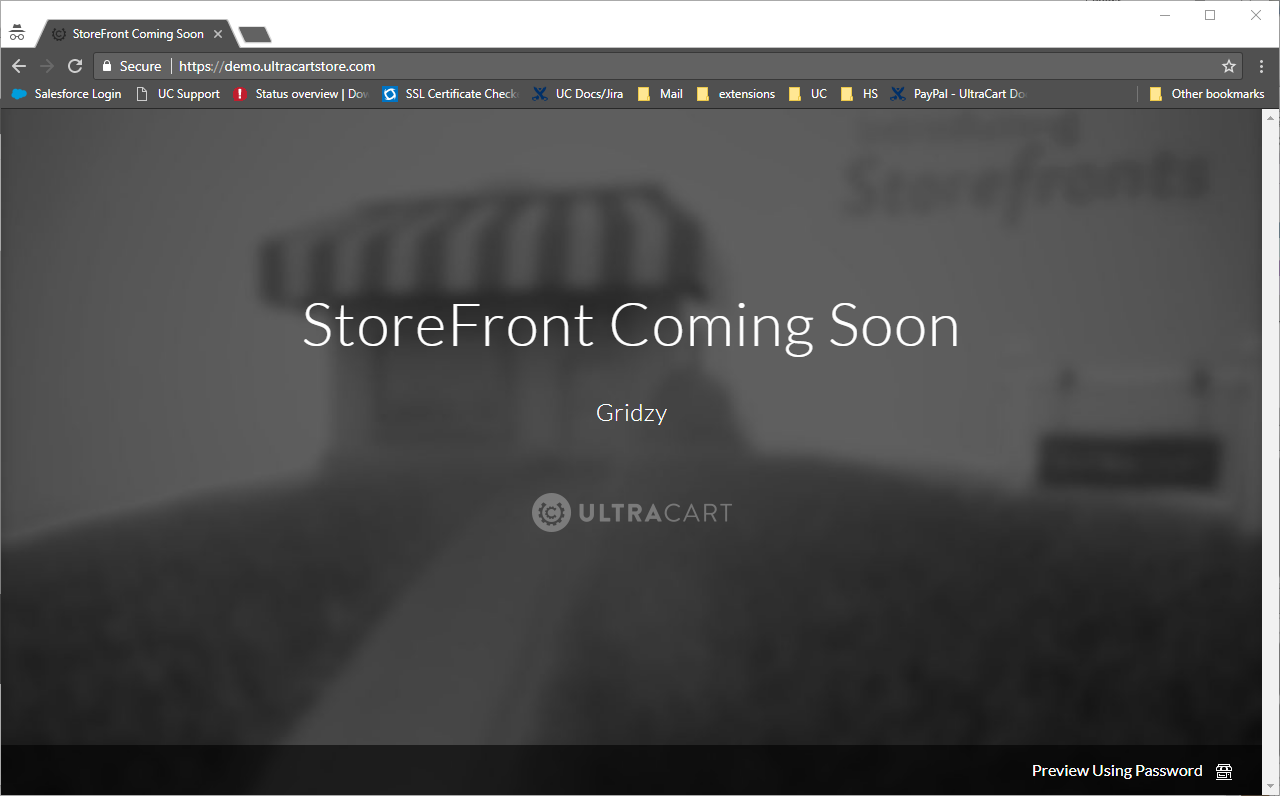
If you did wish to allow someone to view the locked storefront, you would direct them to this page and instruct them to click on the "Preview Using Password" prompt that appears in the lower right hand corner of the "locked" page.
Hiding the Storefront from main menu
Locked storefronts will automatically be excluded from the Main Menu → **Storefronts → Storefront hosts (**Pop out menu)
So, the hiding storefront steps below are only needed if you wish to hide a storefront that is not locked, from appearing in the main menu navigation.
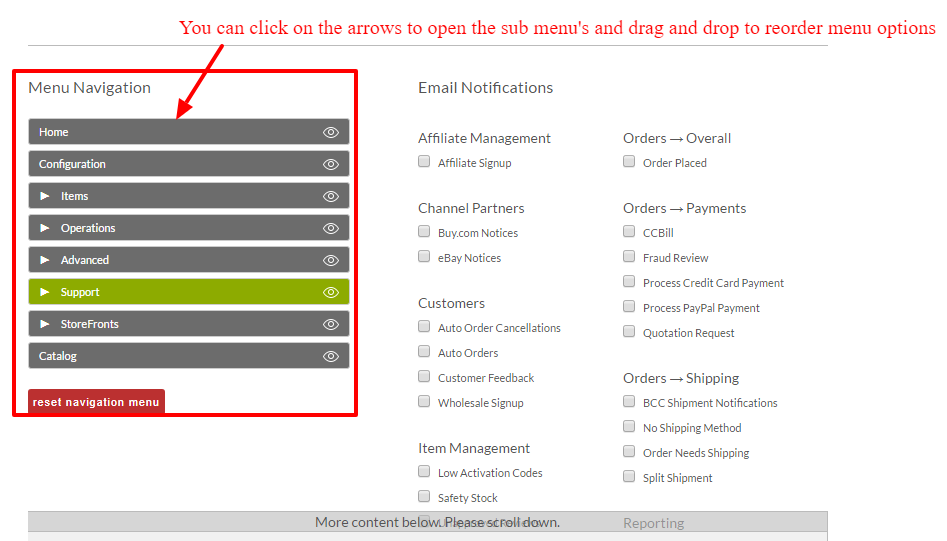
In addition to the steps outlined above, each user can also modify their main menu layout from within their "Your Preferences" page. From there you can insure the unused storefront host does not appear in the pop-out menu.
Navigation
Above any screens Main Menu, mouse over the MerchantID and click "Your Preferences". Then scroll down to the lower left side of the page to the "Menu Navigation" section.
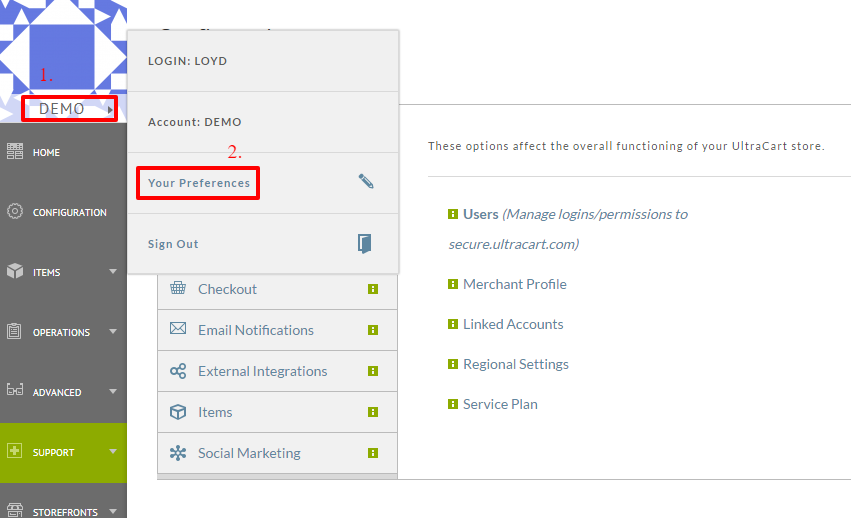
Then scroll down to the "Menu Navigation" section. There you can manually edit your main menu to hide the unsed storefront from appearing in the pop-out when choosing "Storefronts". You can also pull the active storefront host directly onto the main menu if you desire.