Overview
Conditions are used to select and assign product automatically to a group page. By assigning product to the group, individual pages are created directly beneath the group page.
Please see Using Conditions to automatically assign products to a group page for a tutorial on using conditions.
Steps
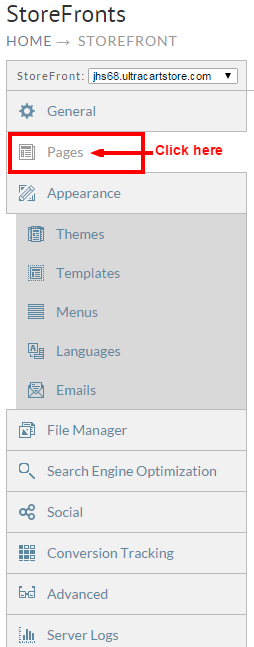
Navigate to "Pages" in the Storefront menu:
Next, Choose the Group page to which you wish to create item assignment rules, then click on the "Items" tab:
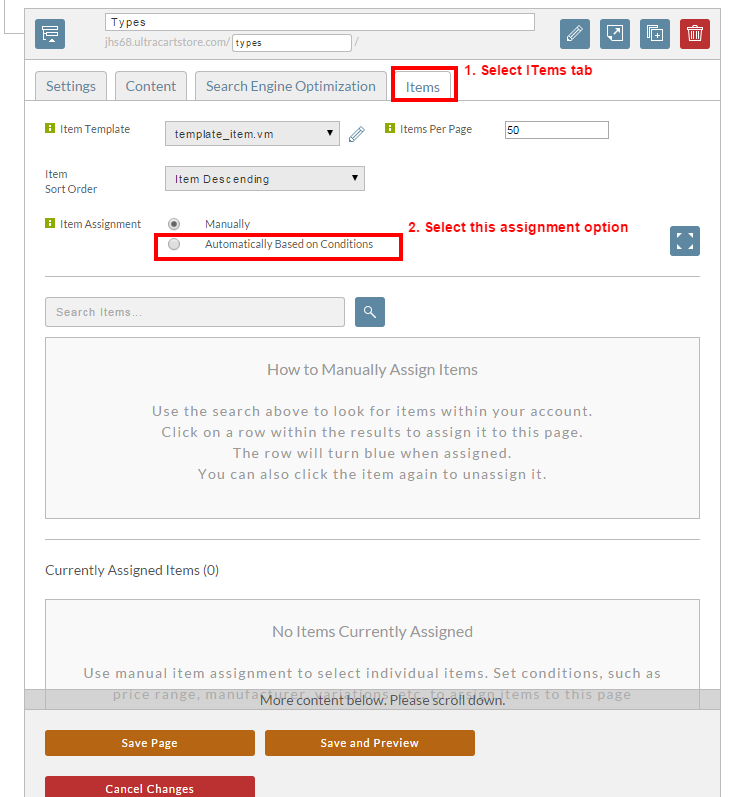
After selecting the item assignment option assign "Automatically Based Upon Conditions", the assignable conditions section will appear
directly below the the radio button titled "Conditions" with a drop down menu for selecting the item assignment condition you wish to apply:
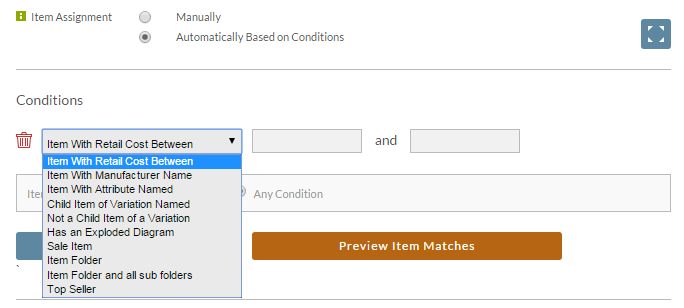
| Condition | Note |
|---|---|
| Item with Retail Cost Between | |
| Item With Manufacturer Name | |
| Item with Attribute Name | |
| Child Item of Variation named | |
| Not A Child Item of a Variation | |
| Has Exploded Diagram | |
| Sale Item | |
| Item Folder | |
| Item Folder and all sub folders | |
| Top Seller |
Before any conditions have been applied you'll see radio button choice for whether items must match either "All Conditions" or "Any Condition":
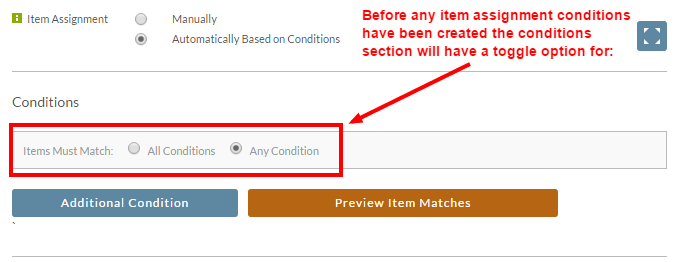
So, make sure to set that according to your needs for the group page item assignment.
Adding item assignment condition
To add an item assignment condition, click the blue button titled "Additional Condition", then select the specific item assignment condition(s) you wish to apply (one condition at a time):
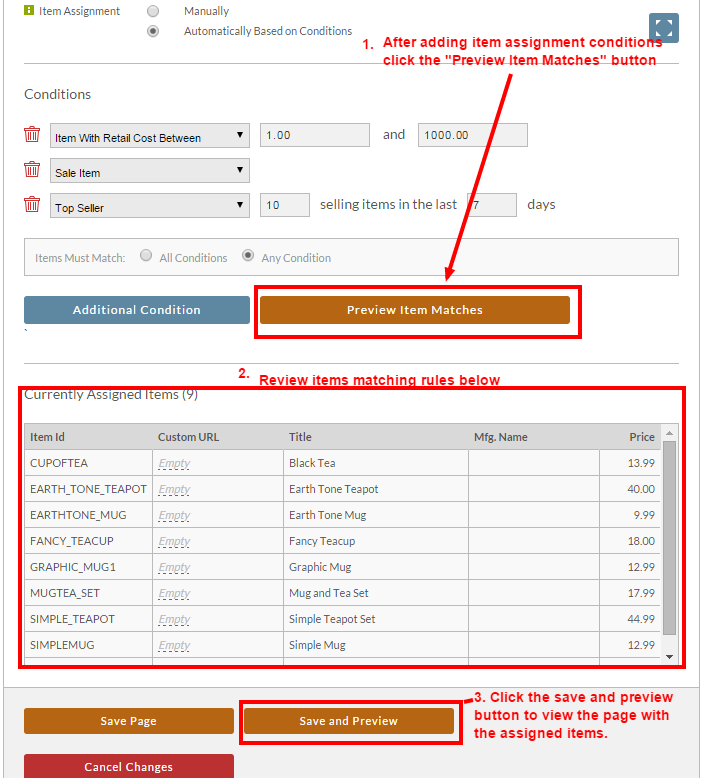
Here's the preview of the group page with the item assignment conditions applied:
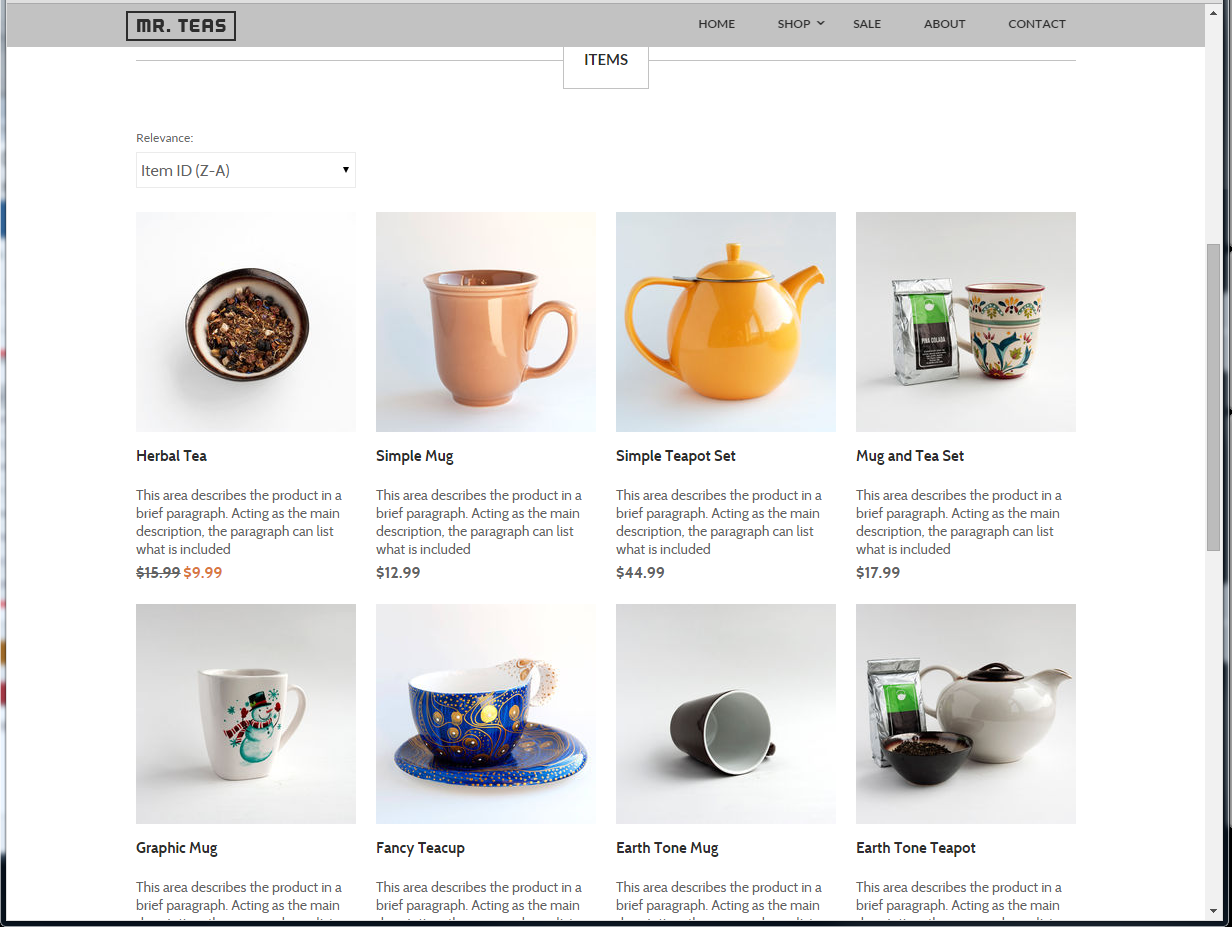
The group name of the page above is "Types", with the storefronts root as the "parent" folder, so the path to the page is the storefront hostname followed by the types folder:
https://jhs68.ultracartstore.com/types/
Reviewing the first item in the page, we see the that the item detail page url for the "teaset" item is the storefront hostname, followed by the group folder followed by the itemID.html:
https://jhs68.ultracartstore.com/types/teaset.html
Congratulations, you've just applied item assignment conditions to a group age in your storefront!