How to Customize the Favicon
Last Updated: May 28, 2026
Overview
UltraCart storefronts support custom favicons to enhance brand recognition and user experience. Browsers display the favicon in tabs, address bars, bookmarks, and other locations. The platform now accepts a favicon.png file in the storefront settings, which is automatically converted to the required .ico format.
What is a Favicon?
A favicon (short for "favorite icon") is a small icon associated with a particular website or web page. Also known as a shortcut icon, website icon, or tab icon, favicons are an important part of a website's visual identity.
Web browsers typically display a page's favicon in several prominent locations:
-
Browser Tab: Next to the page's title on a browser tab.
-
Address Bar: In the browser's address bar, often to the left of the URL.
-
Bookmarks/Favorites: Next to the page's name in a list of bookmarks or favorites.
-
Browser History: In the browser's history list.
-
Desktop Icon: For site-specific browsers, the favicon can serve as a desktop application icon.
Why is it Important?
Favicons play a crucial role in enhancing user experience and reinforcing brand recognition.
-
Brand Recognition: A distinctive favicon helps users quickly identify your brand across multiple open tabs, bookmarks, and browser history.
-
Improved Navigation: In a busy browser window with many open tabs, favicons make it easier for users to locate and switch to your specific website.
-
Professionalism: A well-designed favicon contributes to a professional and polished online image.
-
Trust and Credibility: A consistent and recognizable favicon can build user trust and familiarity with your site.
Creating a Favicon
To create a favicon for your UltraCart storefront, prepare a PNG image following these guidelines:
-
Start with a high-quality source image of your website's logo or a simplified version of it. Popular formats like
.pngare suitable starting points. -
Use square dimensions. The image must fit inside a square icon.
-
Ensure legibility at very small sizes (favicons are often displayed at 16x16 or 32x32 pixels).
-
Recommended starting size: at least 260 x 260 pixels.
Save the file as favicon.png.
Note: UltraCart will automatically convert your
favicon.pngto the required.icoformat during upload.
Applying the Favicon to Your Storefront
-
In your UltraCart dashboard, navigate to Storefronts.
-
Select the specific storefront you want to customize.
-
Go to the General tab of the storefronts menu.
-
In the About your Store section, locate the Storefront Favicon area.
-
Upload your
favicon.pngfile using the provided upload mechanism.
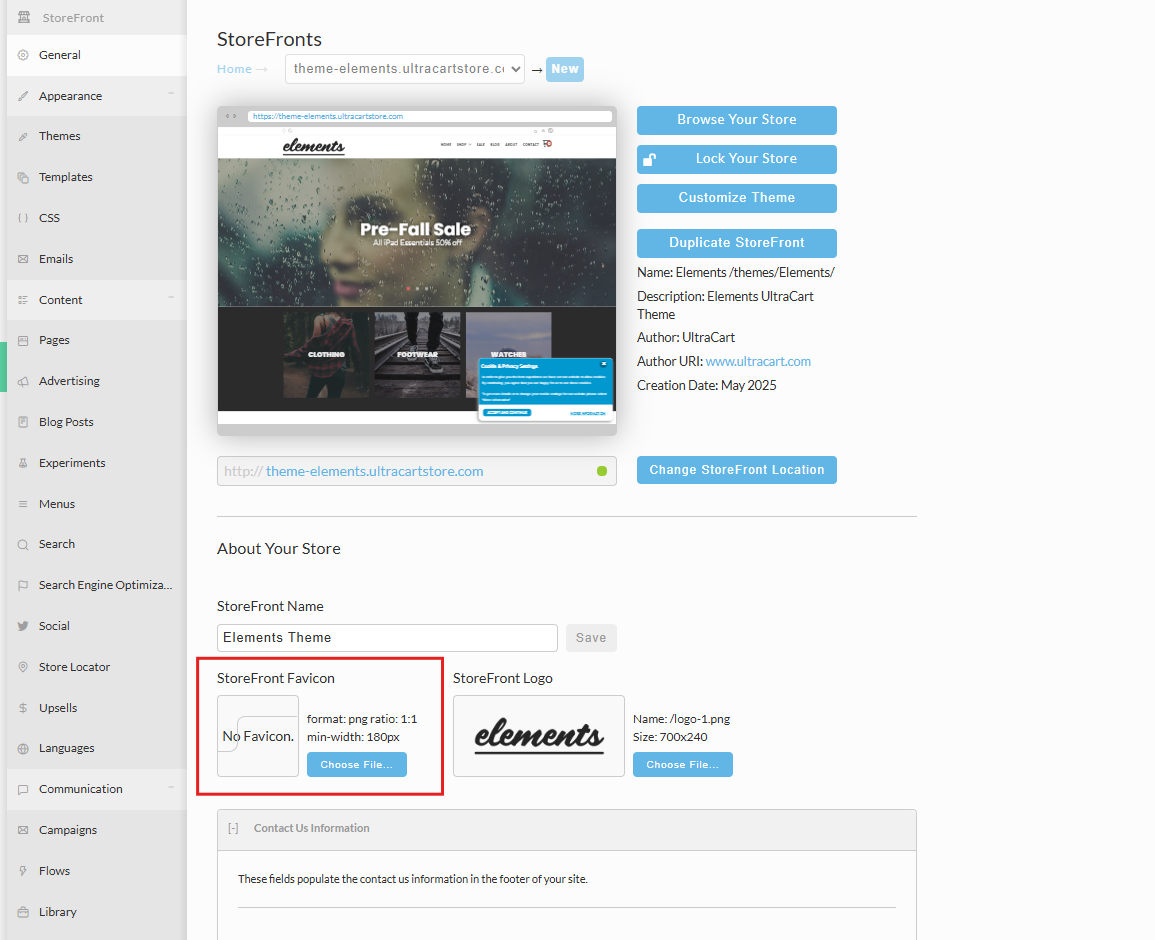
Once uploaded, the favicon will be automatically applied to your storefront, appearing in browser tabs and other designated locations.
Alternative: Manual .ICO File Creation and Upload
If you prefer to create and upload a pre-generated .ico file directly into the file manager:
-
Use an online favicon generator tool to convert your source image (or text) into a
.icofile. Search for "favicon generator" to find suitable tools. -
Follow the upload instructions for the file manager or any direct
.icoplacement.
Key Terminology
-
Favicon: Short for "favorite icon," a small icon associated with a website.
-
.ICO Format: A specific image file format (often multi-resolution and multi-color) commonly used for favicons by web browsers. UltraCart handles conversion from PNG to this format.
-
Storefront: Your online store built and hosted on the UltraCart platform.