reCAPTCHA v2
Registering with Google reCAPTCHA v2
First navigate to Google reCAPTCHA. You'll need to login to your Google account.
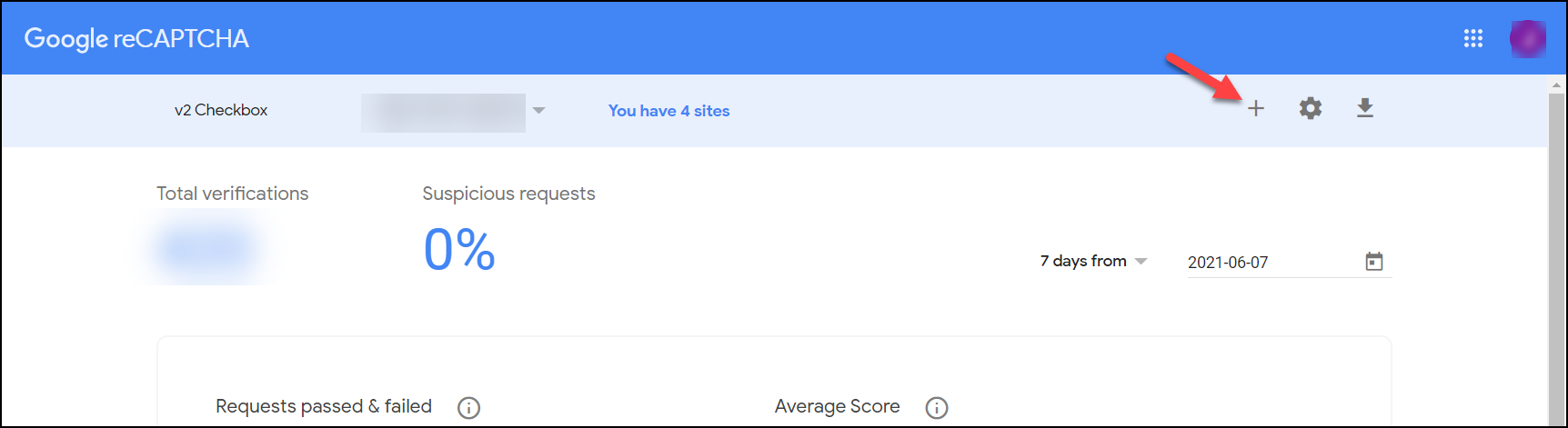
Next, click on the + button of the main toolbar as shown below.
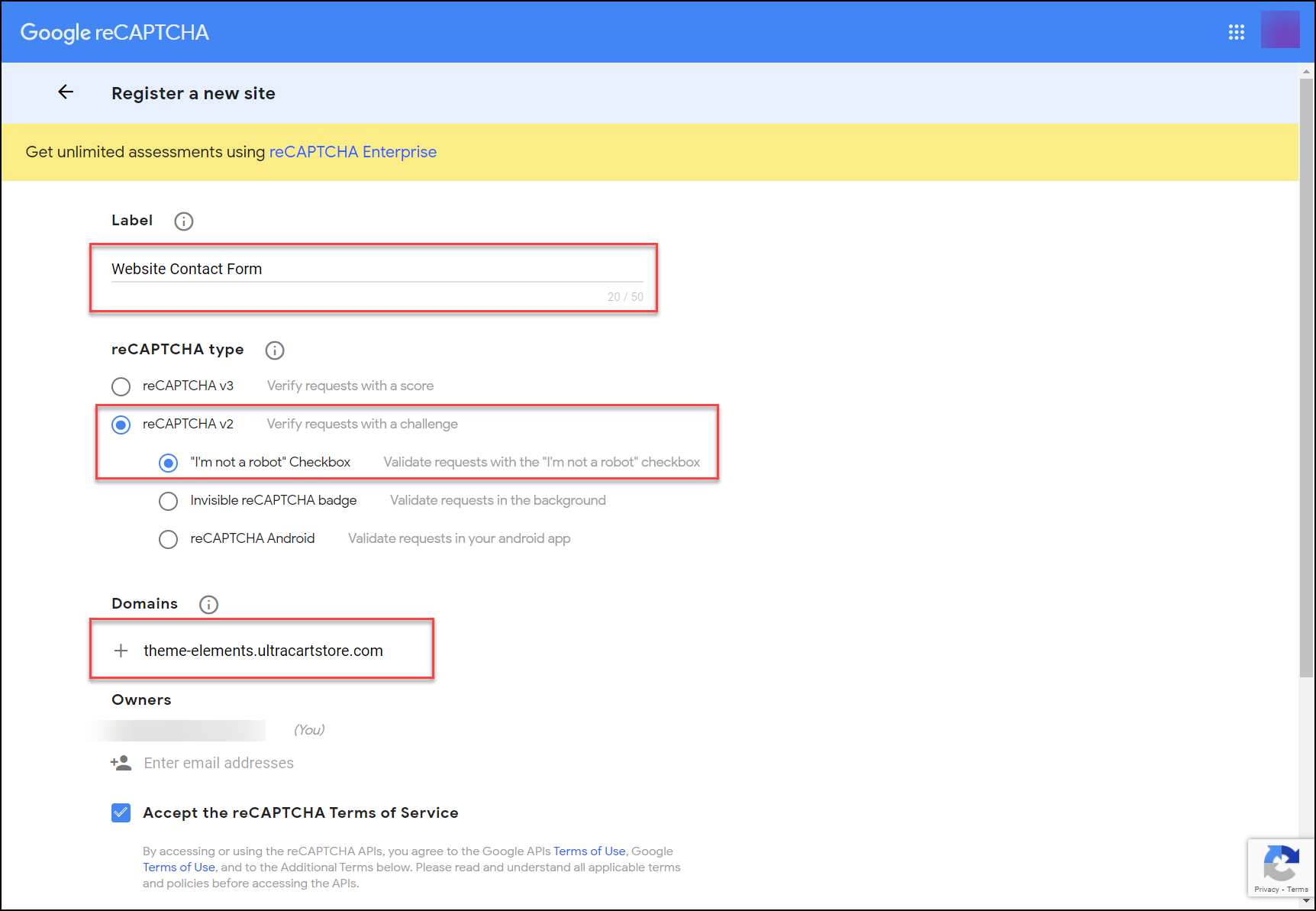
Fill out the form similar to the screenshot below. The label should be a description you recognize.
For the type, make sure to choose V2 and "I'm not a robot". In the domains section, make sure to specify your domain name:
After submitting the form, the next screen will present you with the site key and secret key.
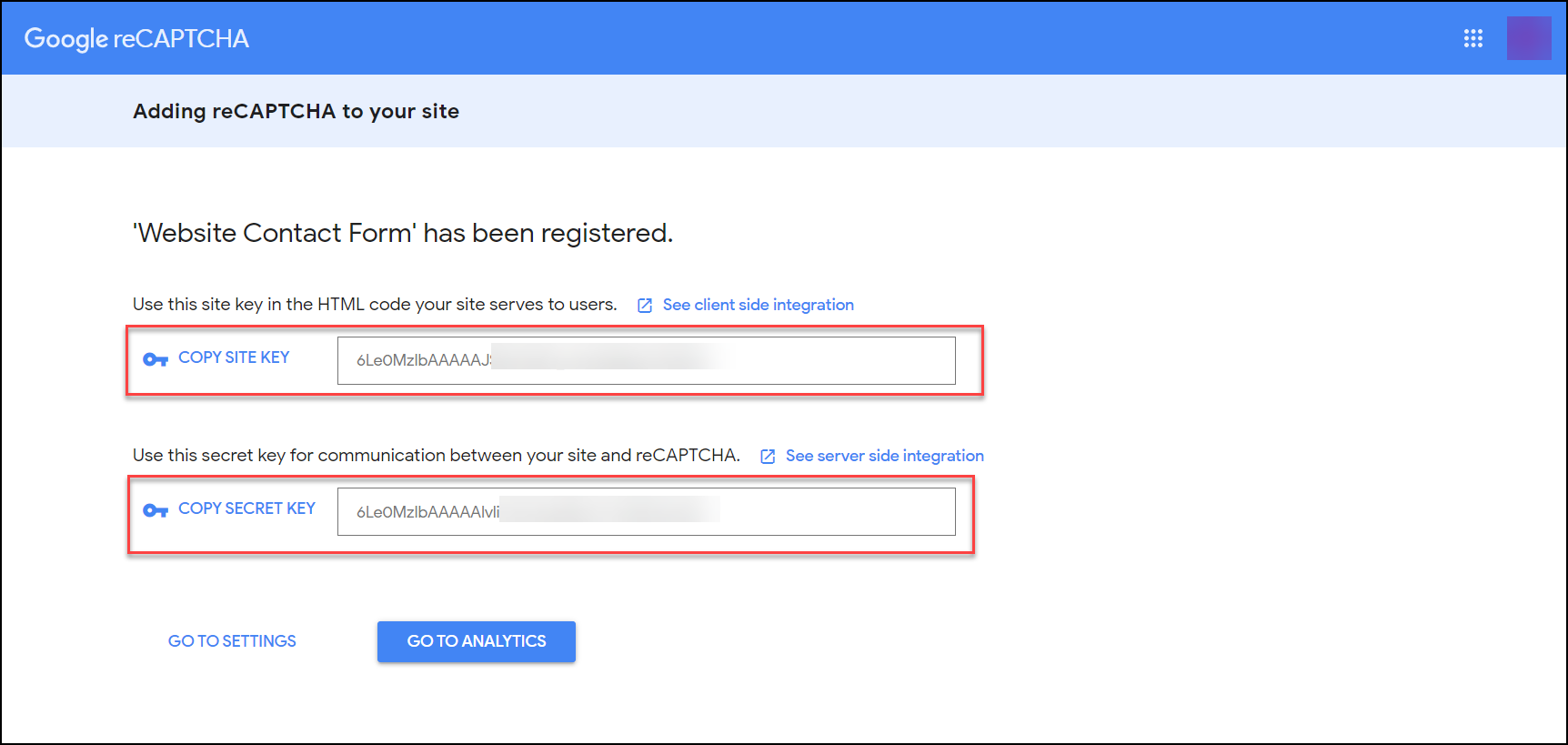
You'll need to copy those values during the next section of this installation guide.
Installing reCAPTCHA keys in your StoreFront
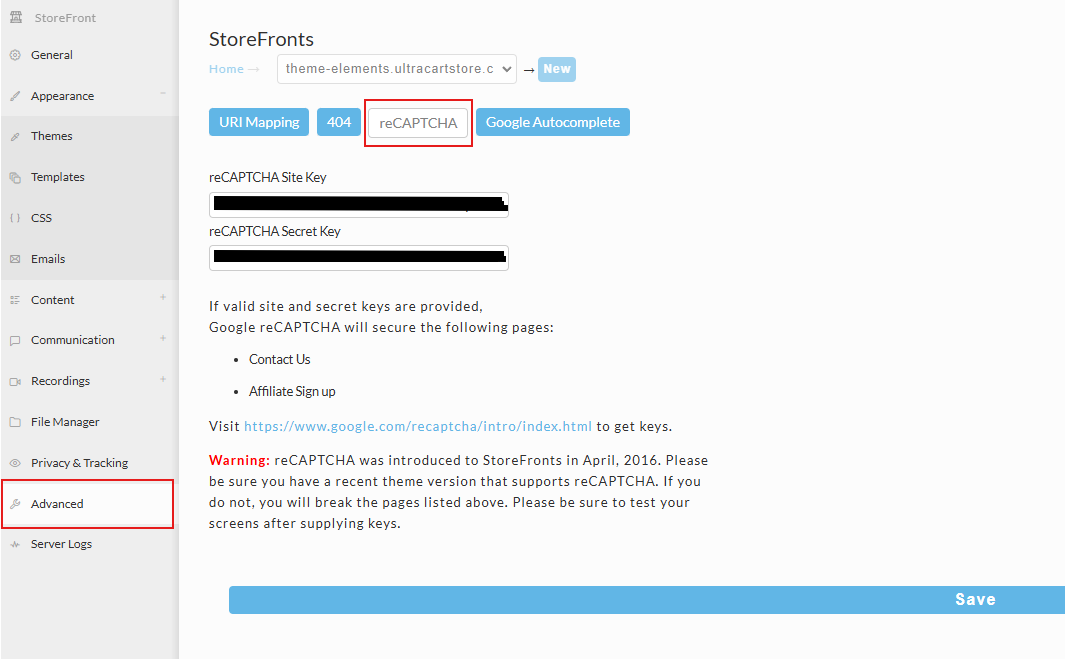
Navigate to Home → StoreFront → Advanced (tab) → reCAPTCHA.
Enter your Site and Secret keys. Save.
Turning on reCAPTCHA for your Affiliate Signup
reCAPTCHA is automatically activated for any StoreFront Affiliate Signup screen if keys are installed in the StoreFront. There is nothing more you need to do.
Some caveats:
-
Your theme must support reCAPTCHA. The earliest theme supporting reCAPTCHA was Mr. Teas on 5/16/2016. Some themes are still awaiting the updated code.
-
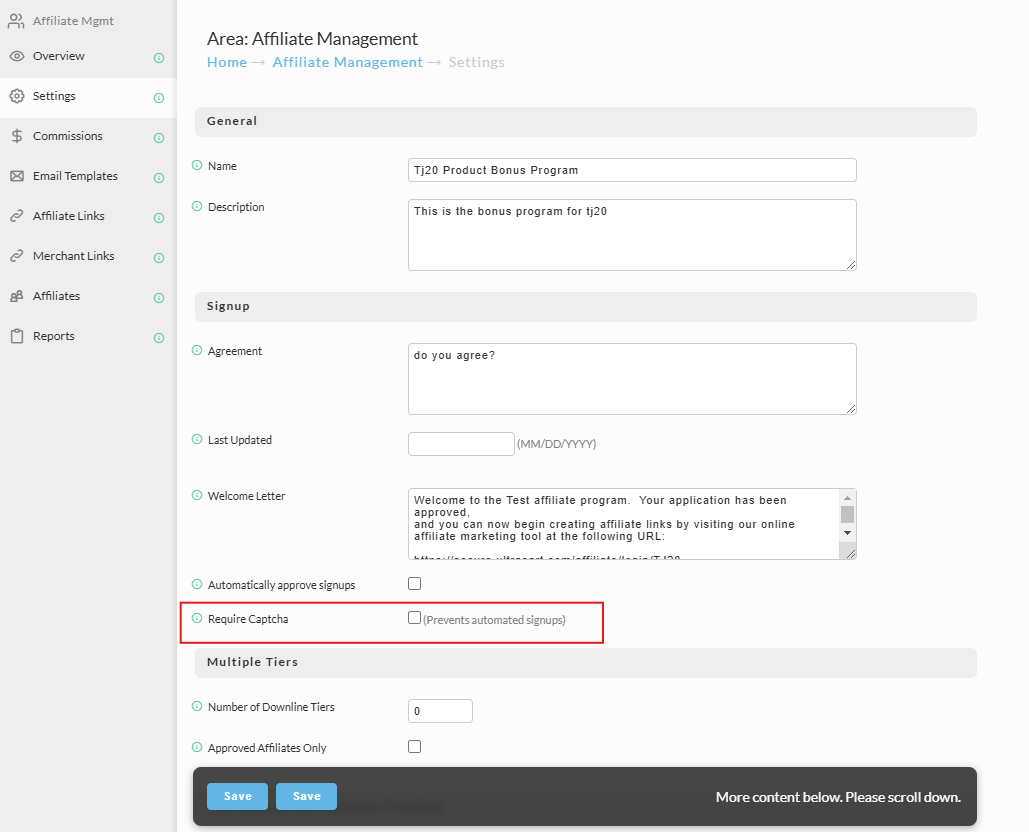
There is a flag that was primarily used for legacy sites to show/hide reCAPTCHA and can still affect the StoreFronts. Make sure that checkbox is checked.
noteYou can view this setting by going to Advanced → Affiliate Management → Settings → Require Captcha
Troubleshooting
"ERROR for site owner: Invalid site key"
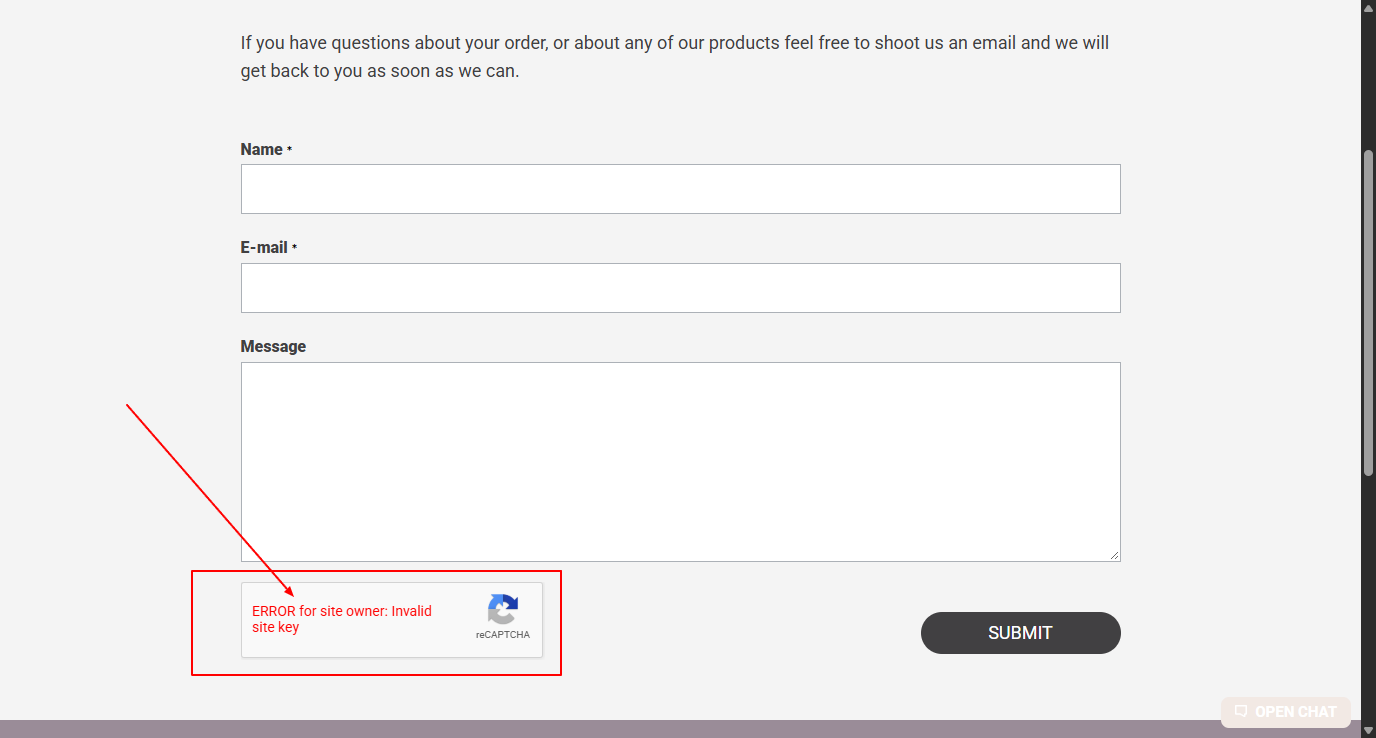
This message appears in place of the reCAPTCHA checkbox and blocks the form from being submitted. It means the site key installed on this StoreFront (Advanced tab → reCAPTCHA) is not valid for the domain the page is loading on.
This is general troubleshooting guidance covering the common causes of this error on accounts with more than one StoreFront. It is not a confirmed diagnosis for any particular account.
If you run more than one StoreFront on your account, check these two causes first:
- No site key and secret key entered yet for this StoreFront. Go to Home → StoreFront → [this StoreFront] → Advanced tab → reCAPTCHA and confirm both the
SiteandSecretfields are populated. See Installing reCAPTCHA keys in your StoreFront above. - The site key belongs to a different StoreFront's domain. A Google reCAPTCHA site key is tied to a list of authorized domains, not to a single domain. Go to Google reCAPTCHA, open the key in question, and add the new StoreFront's domain to its Domains list. You don't need to register a separate key for each StoreFront unless you prefer to keep them separate. See Registering with Google reCAPTCHA v2 above.