Overview
This document will detail the following:
- Assigning products to a group page automatically creates product pages
- The types of conditions that can be configured
- Is there a limit to the number of product pages?
Steps
Here are the steps for configuring a page with automatic product assignment to a group page:
-
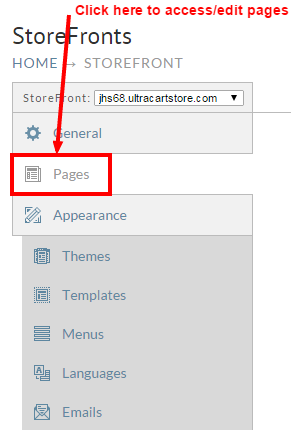
From the StoreFronts Menu, click on "Pages":
-
Next, scroll down the list of pages to the one which you wish to edit the product assignment:

-
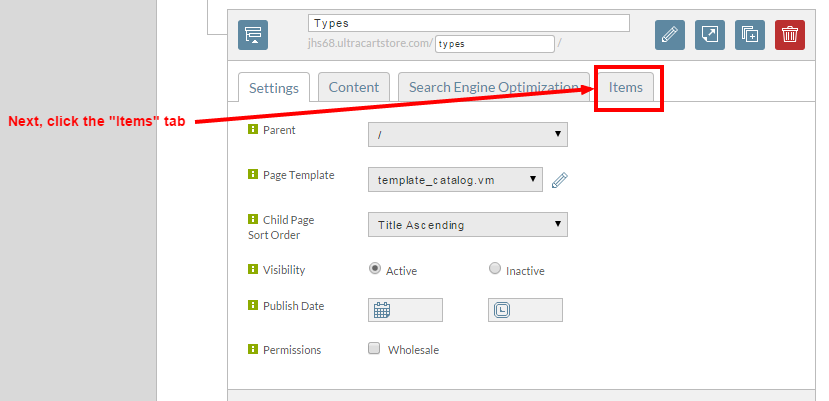
After clicking the edit button, click the "items tab to access the items configuration:
-
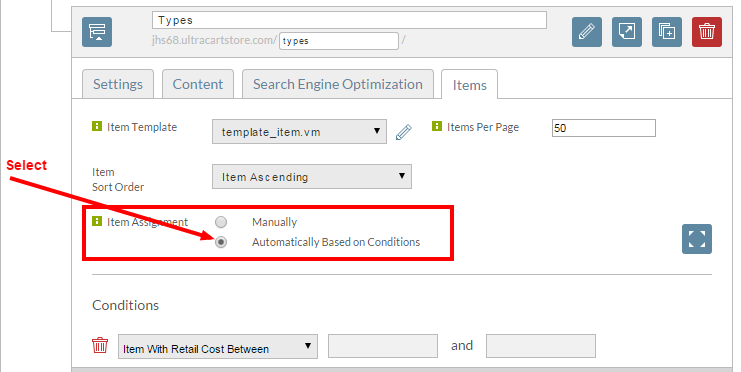
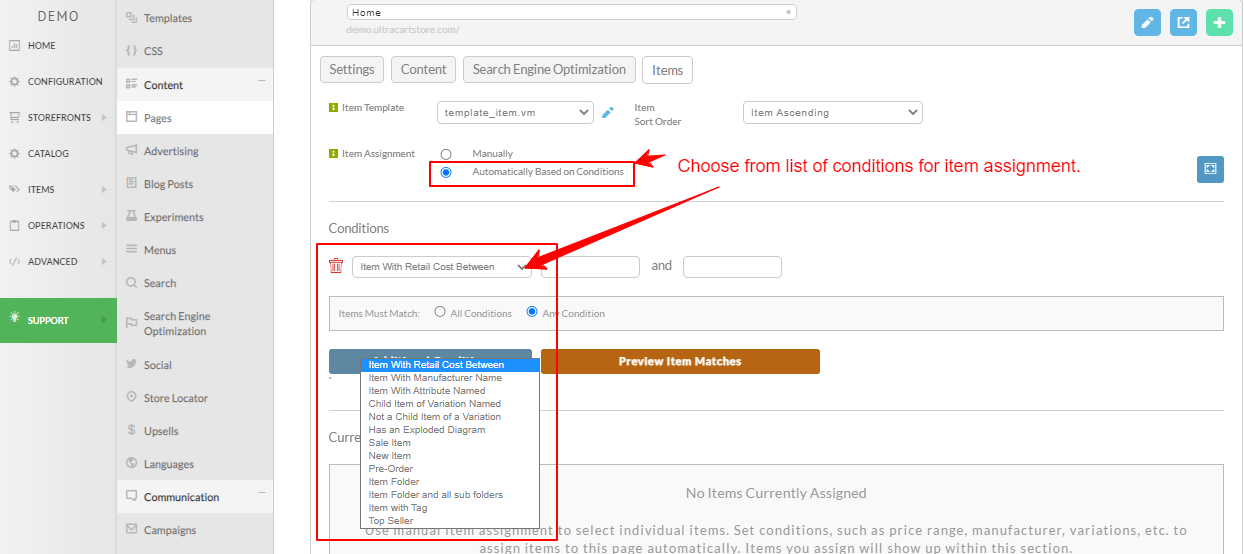
On the Items tab, select the radio button for "Automatically Based on Conditions" for the item assignment:
-
Upon selecting the "Automatically based on Conditions" you'll see a "Conditions section appear with a drop down menu for selecting the particular condition for item inclusion:
-
| Assignment Condition | Details |
|---|---|
| Item With Retail Cost Between | |
| Item With Manufacturer Name | |
| Item With Attribute Named | |
| Child Item of Variation Named | |
| New Item | Will assign any item that has the "New Item" checkbox selected, in the General Settings in the 'Shipping' tab in the item editor. |
| Not a Child Items of a Variation | |
| Has an Exploded Diagram | |
| Sales Item | |
| Item Folder | |
| Item Folder and all sub folders |
-
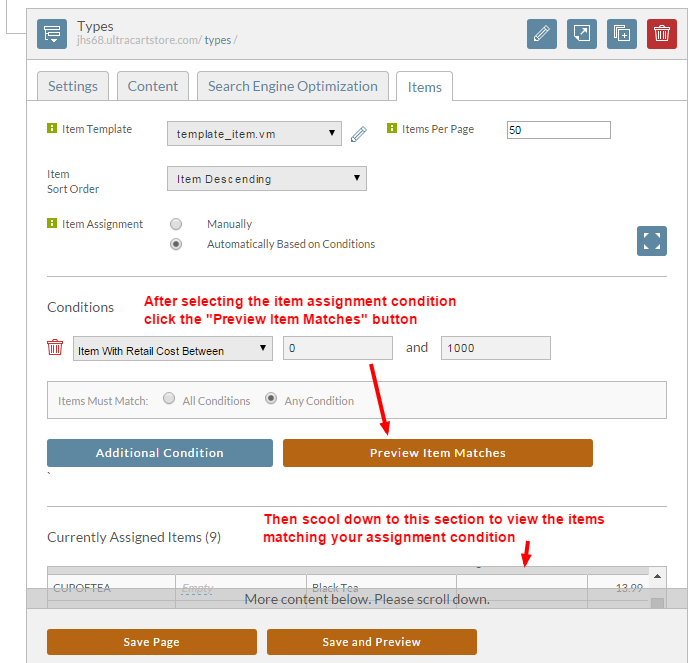
After choosing a new item assignment condition in the drop down menu, click the save and preview item matches button.
-
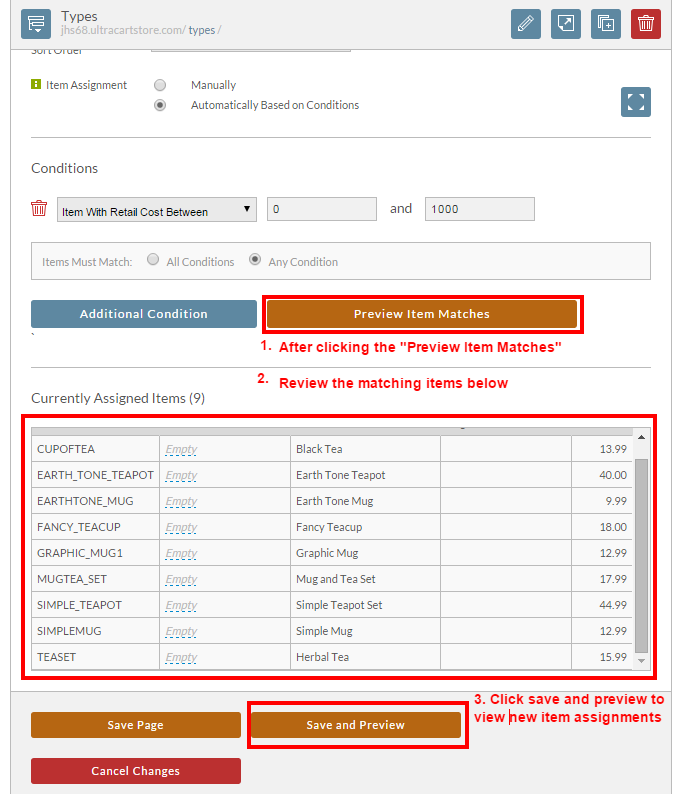
For this example we set the assignment condition to "Item with Retail Cost Between" with the cost range: from 0 to 1000:
-
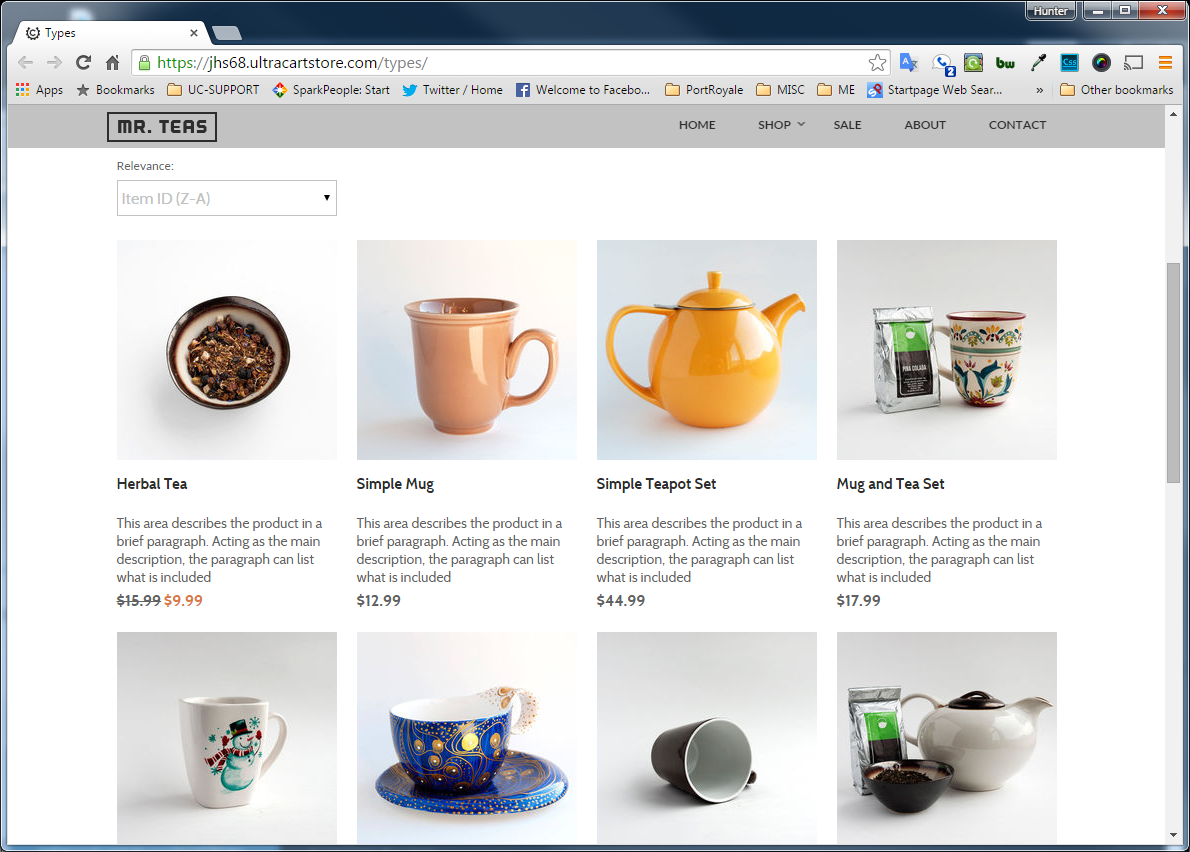
Here is the view of the page after the item assignment has been saved: