StoreFront Blogs
Overview
A StoreFront blog lets you publish articles — announcements, guides, promotions — directly on your storefront, using the same Pages and Visual Builder tools you use for the rest of your site. You can run a single blog or several blogs on one storefront, control exactly which posts appear on each, and let readers comment through Disqus.
Key Capabilities
A StoreFront blog includes:
- Multiple blogs per storefront — no limit; each is its own page (for example
/blog/or/news/), placed anywhere in your page hierarchy. - Flexible post assignment — assign posts to a blog manually, automatically as "All Posts," or by condition (author name, a blog post attribute, or a tag).
- Authors and tags — organize posts by author and tag; tags also drive automatic post assignment.
- Draft, Published, or members-only visibility — hold a post as a draft, publish it, or restrict it to logged-in customers.
- Scheduled publishing — set a publish date so a post goes live automatically.
- Rich content — write posts in a WYSIWYG or HTML editor, embed multimedia, and set a per-post SEO meta description (used by Facebook when a post is shared as a link).
- Reader comments via Disqus — a free third-party comment system that displays automatically below each post once configured.
- Bulk editing — update comment behavior, author, visibility, and publish date across multiple posts in a single action.
- Inclusion in Page Search — blog posts are indexed and surface in your storefront's built-in Page Search results.
- An RSS feed for every blog: published automatically, so email platforms, social scheduling tools, and feed readers can pick up new posts on their own.
How a Blog Fits Into Your StoreFront
A blog is a page, not a separate feature. To create one, add a page in StoreFront → Pages and select template_blog.vm as its template — this is what puts a Blog Posts tab on the page for choosing which posts it displays. Because a blog is just a page, it can live wherever you place it in your page hierarchy, alongside product groups and item pages — for example /blog/, /products/shirts/mens/, and a second blog at /news/ can all coexist.
The individual posts are managed separately, on the StoreFront → Blogs screen rather than the page editor. A post can belong to one blog, several blogs, or none, depending on how it's assigned.
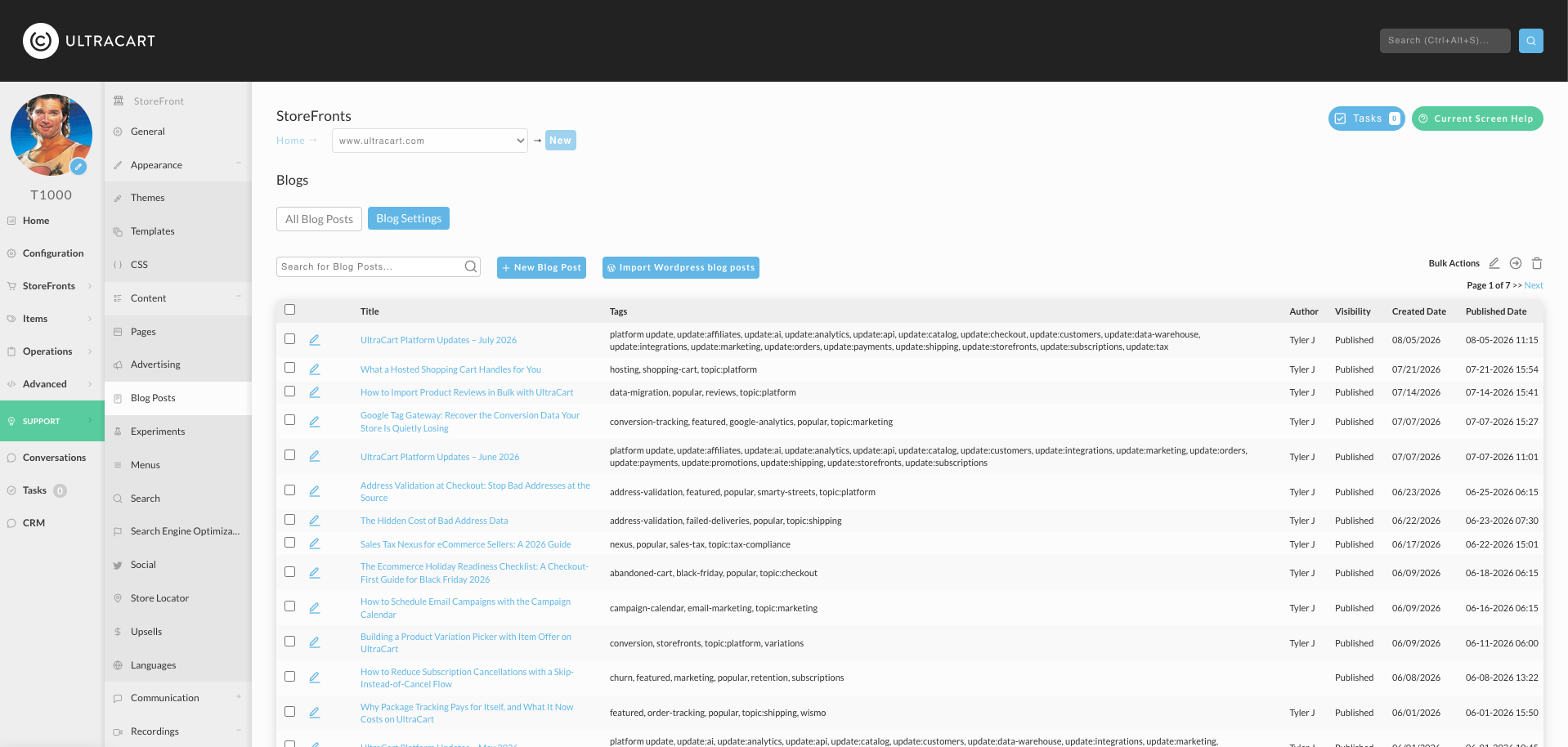
The All Blog Posts tab lists every post on the storefront with its tags, author, visibility, and dates; Blog Settings holds the storefront-wide options. From here you can add a post, import posts from WordPress, or select several posts and apply a bulk action.
If the Blog Posts tab doesn't appear after selecting template_blog.vm, your active theme doesn't support blogs. Contact your theme developer to request support.
Choosing which posts a blog displays
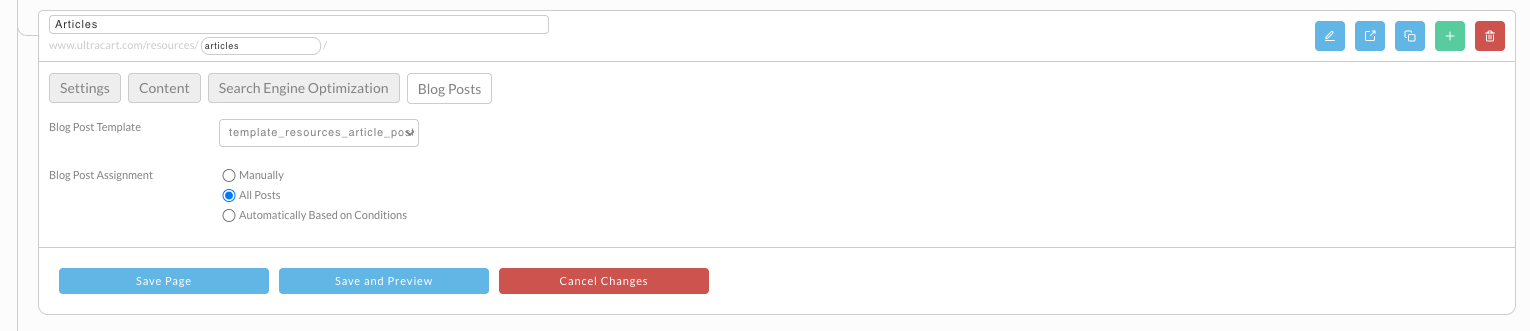
The page's Blog Posts tab controls the template used to render individual posts and how posts are assigned to that blog — Manually, All Posts, or Automatically Based on Conditions.
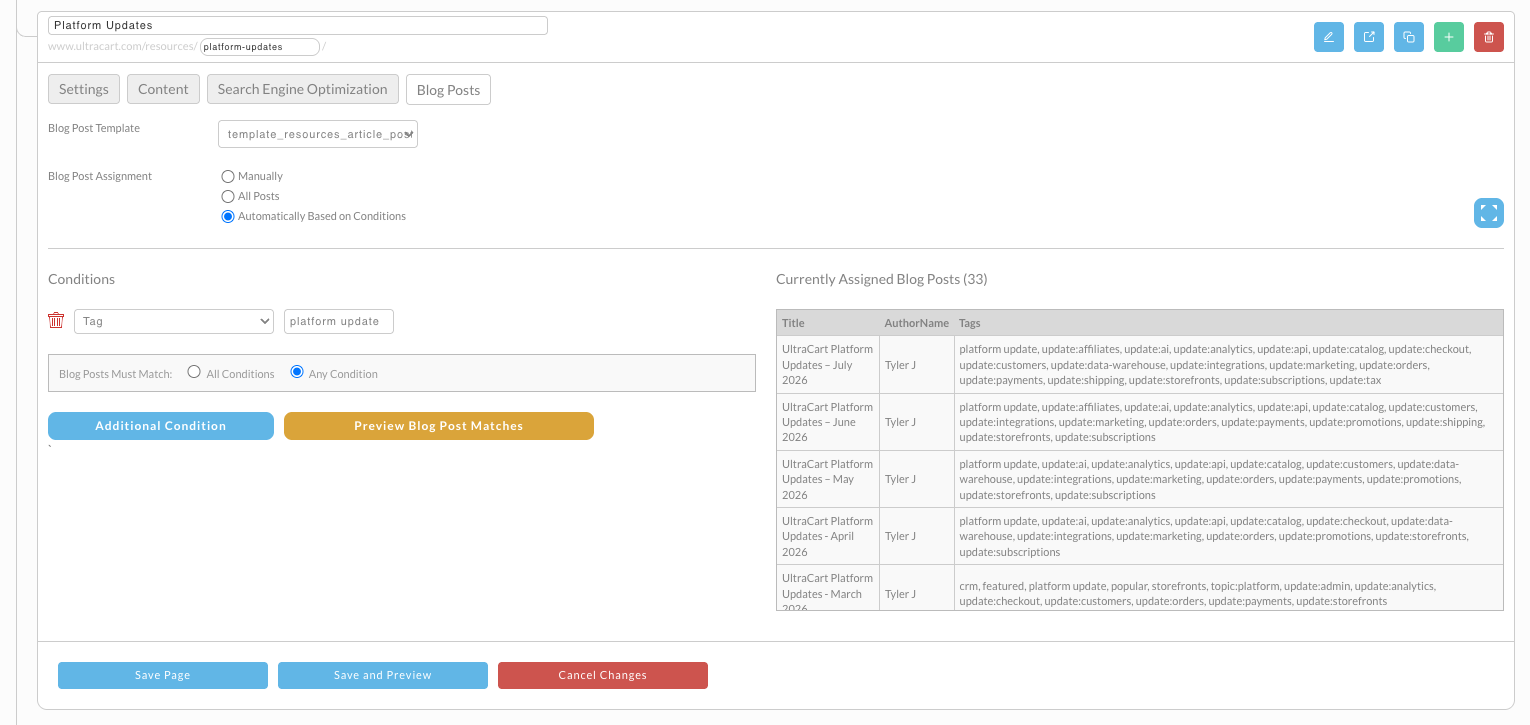
Choosing Automatically Based on Conditions opens a condition builder. Add one or more conditions — such as a tag — and set whether posts must match All Conditions or Any Condition. Preview Blog Post Matches shows what the rules select, and the Currently Assigned Blog Posts panel lists the posts the blog is displaying now.
In the Visual Builder, a blog listing page uses a purpose-built layout — a container-blogpost-list container with a blogpostlist element that handles post rendering and pagination — rather than the generic page-container pattern used by ordinary content pages.
The RSS Feed
Every blog on your storefront publishes an RSS feed. RSS is a standard format that other software reads to pick up your posts automatically, so you can send a new article to your mailing list or your social accounts without copying it over by hand. There is nothing to turn on.
A blog's feed sits at the blog's own address with rss.xml on the end. If your blog is at https://www.example.com/blog/, its feed is at https://www.example.com/blog/rss.xml. Each blog has its own feed, so a second blog at /news/ publishes a separate feed at https://www.example.com/news/rss.xml covering only the posts assigned to that blog.
The feed carries the 20 most recent published posts. Each entry includes the post title, a link to the post on your storefront, the author, any tags, the publication date, the post's default image, and the full text of the post.
Which posts appear
A post is included only when all three of these are true:
- Its visibility is Published. Drafts and posts restricted to logged-in customers stay out of the feed.
- Its publish date has passed. A post scheduled for next Tuesday joins the feed on Tuesday.
- It is assigned to that blog. Assignment works exactly as it does for the blog page itself, whether you assign posts manually, as All Posts, or by condition.
How often it updates
The feed is rebuilt every hour, so a post can take up to an hour to show up. Email tools and feed readers then check on their own schedule, often every 15 to 60 minutes, so allow for both when you are timing an announcement.
What you can do with it
- Email your subscribers. Platforms such as Mailchimp can build a campaign from a feed and send it on a schedule. Because the feed carries the full text of each post rather than a short summary, the email can contain the whole article.
- Post to social media automatically through any scheduling tool that accepts a feed address.
- Let readers subscribe in a feed reader and get your posts as you publish them.
- Syndicate to a partner site that republishes your articles.
To use a feed in one of these tools, copy the feed address and paste it wherever the tool asks for an RSS or feed URL.
Open your feed address in a browser to check it. You should see the XML for your most recent posts. An empty feed usually means no published posts are assigned to that blog yet.
Common Uses
StoreFront blogs support a range of setups, from a single company blog to conditionally routed, multi-blog campaigns:
- A single company blog — announcements, guides, and promotions on one
/blog/page, with all posts assigned automatically. - Multiple topic-specific blogs — for example a general blog and a support/FAQ blog, with posts routed to each by tag or author.
- Coupon or campaign posts — tag posts with an attribute such as
Couponand assign them automatically to a dedicated promotions blog. - Member-only content — publish posts that are visible only to logged-in customers.
Related Documentation
- Getting started creating a blog for your site — create your first blog page and understand post assignment.
- Creating a blog post — write and publish an individual post.
- Having multiple blogs on your web site — run more than one blog.
- Assigning an individual blog post to one or more blogs — route specific posts to specific blogs.
- Adding your blog to your menu — link a blog into your StoreFront navigation.
- Configuring Disqus Comments for StoreFront Blogs — turn on reader comments.
- Updating multiple blog posts at once — bulk-edit posts.
- Understanding how Blogs are included in Page Search — how blog posts surface in storefront search results.
- UltraCart Blog Page Hierarchy and Layout Overview — the Visual Builder structure of the blog listing page.