Working with Elements on the Page
Once the Visual Editor is loaded you can move your mouse around the page to highlight an element as shown below.

The element will highlight in blue, the title will display and a toolbar will appear in the upper right. The toolbar varies based upon the type of element that you are working with. The possible tools that appear on this menu are:
| Icon | Description | Shortcut Key |
|---|---|---|
 Delete Delete | Delete the element from the page. | DEL |
 Duplicate Duplicate | Duplicate the element on the page. | f |
 Settings Settings | Access the settings for this element | s |
 Hierarchy Hierarchy | View this element in the hierarchy view | h |
 Add Add | Add an element below | + |
 Scoped CSS Scoped CSS | Access the scoped CSS for this element | c |
 Comment | Put a comment on the element (only visible in the editor mode) | m |
Left  | Move the element left | l |
Right  | Move the element right | r |
Up  | Move the element up | u |
Down  | Move the element down | d |
Grid Size  | Change the size of the column on the grid | g |
Edit  | Edit the text for this element (headline, text, textblock) | e |
Experiment  | Change the experiment variation that is visible |
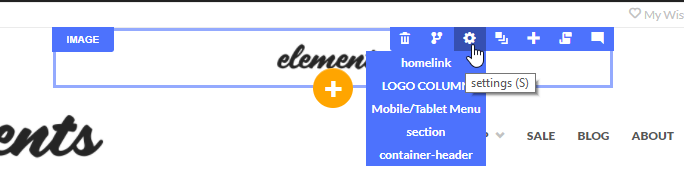
Often times elements will be nested on the page so access their toolbars directly is not possible. When you hover over a toolbar icon, a flyout menu of all the parent elements will appear as shown below. This allows quick access to any element on the page simply by hovering over that part of the page that contains it.
Was this page helpful?