Themes
A theme is the design package that controls how your StoreFront looks: its templates, CSS, JavaScript, and images. A StoreFront has exactly one active theme at a time, but you can install several and switch between them, which is what makes it safe to build a redesign while customers keep using the current site.
Everything on this page happens in one place. Go to Main Menu → StoreFronts, choose your StoreFront host, then select Themes under Appearance. Your active theme is always the leftmost tab.
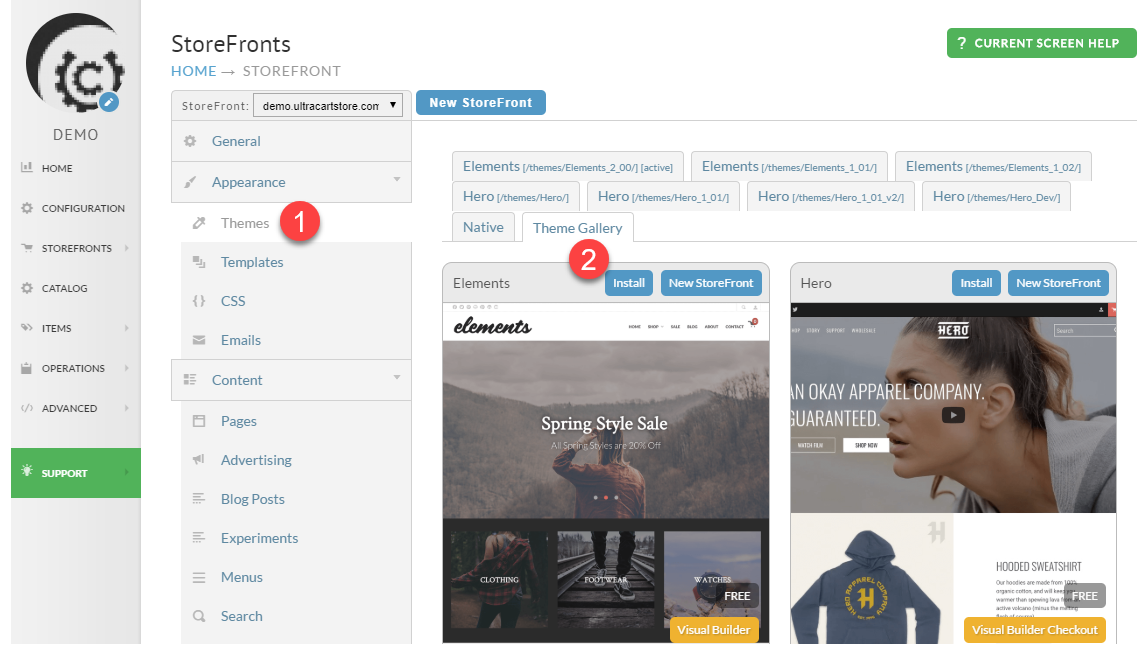
Install a theme from the gallery
The Theme Gallery holds UltraCart's professionally designed themes. You need StoreFront enabled on your account to use it.
- On the Themes screen, select the Theme Gallery tab.
- Browse the available themes.
- Select the theme you want, then select its Add Theme button.
- Confirm the installation.
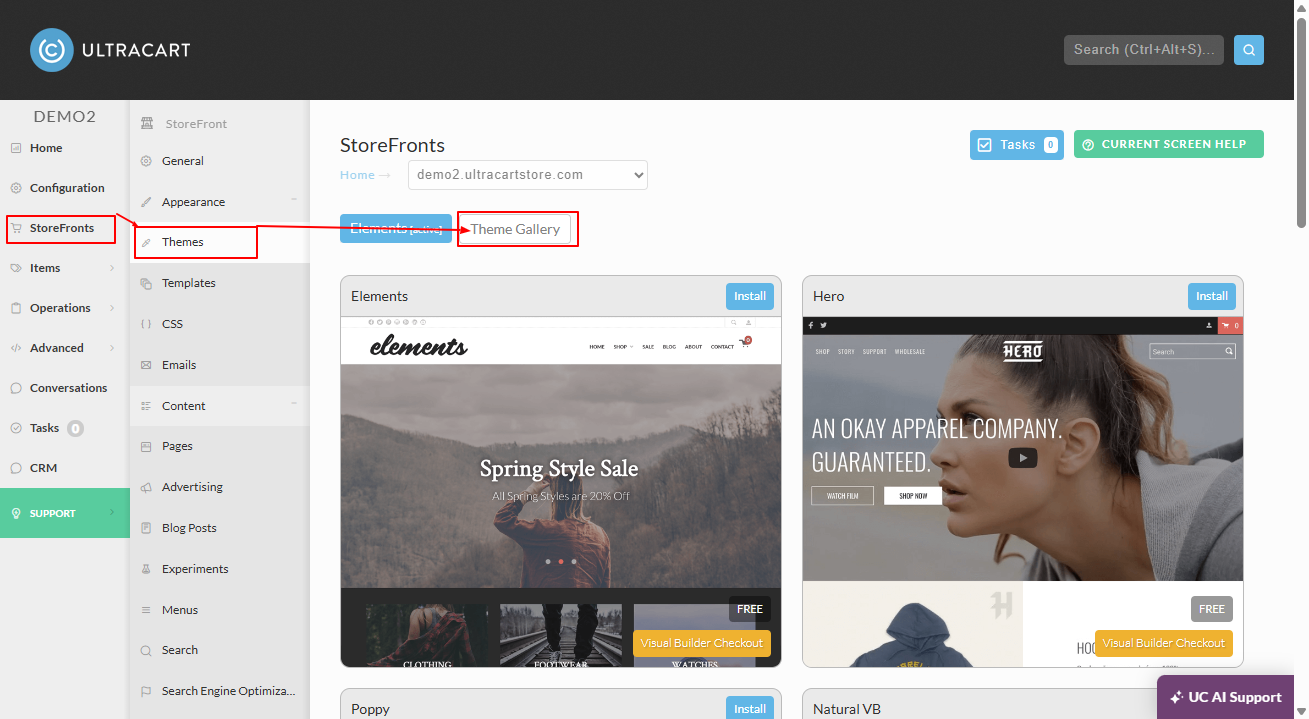
Themes currently in the gallery:
| Theme | |
|---|---|
| Elements | Revision log |
| Hero | Revision log |
| Jewel | Revision log |
| Lifty | Revision log |
| Natural VB | Revision log |
| Poppy | Revision log |
| Native | |
| Nexus | Coming soon |
Installing a theme does not activate it. The new theme sits alongside your current one until you activate it, so nothing changes for customers yet.
The Upload button on the Themes screen is not currently used. It is reserved for future use, so ignore it when installing a theme.
Preview a theme before activating it
Once you have more than one theme installed, you can see what your site looks like under a theme without customers seeing it. This is the step to take after installing a theme or partway through an upgrade.
-
On the General tab, select the URL for your StoreFront. This opens the site in a new tab with the admin panel across the top.
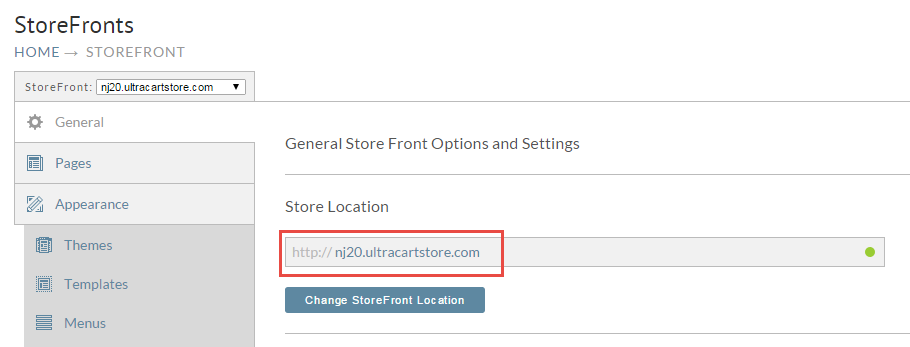
-
In the admin panel, hover over Theme Preview and select the theme you want to see.
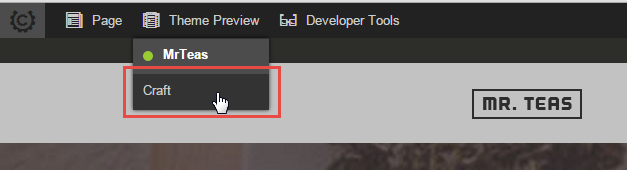
A green dot marks the currently active theme. Every other installed theme is listed beneath it.
Activate a theme
Activating makes a theme live for customers immediately.
-
On the Themes screen, select the tab for the theme you want.
-
Hover over the theme image until the buttons appear, then select Active.
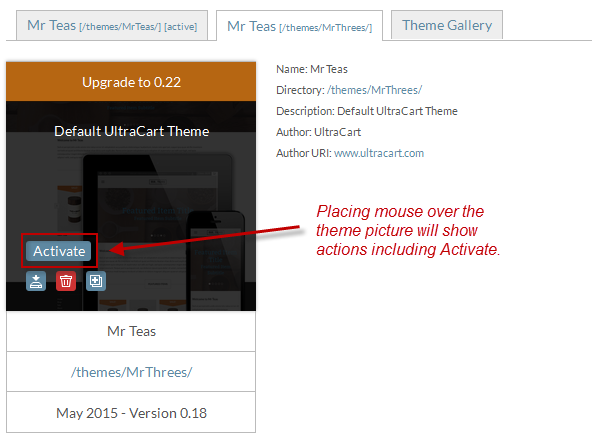
-
Confirm in the dialog.
The newly activated theme moves to the leftmost position.
If you have no other theme installed, install one from the gallery or duplicate the one you have first.
Delete a theme
- On the Themes screen, select the theme you want to remove.
- Hover over the theme image and select the red trash can icon.
- Read the confirmation dialog carefully, then follow its instructions.
The screen reports the status of the deletion before returning to the theme list.
You cannot delete the active theme. Activate a different theme first, then delete the one you no longer want.
Next steps
- Customizing a theme covers theme settings, CSS overrides, and duplicating a theme so you can work on it safely.
- Upgrading a theme covers what happens when UltraCart ships a theme update, including merge conflicts.
- Theme revision logs record what changed in each theme version.
- Developers building a theme from scratch should start with the All Themes developer tutorials.