Upgrading a Theme
UltraCart ships fixes and improvements to its themes. When an update is available for a theme you have installed, a note appears on the theme's icon showing the new version number.
Upgrading merges the new version into your theme, keeping the edits you have made. That merge is usually clean. It is not clean when you and the theme developer changed the same part of the same file, which is what a merge conflict is.
Duplicate your theme before upgrading, every time. It is the only way back to the original if the upgrade goes somewhere you did not intend. See Duplicate a theme.
Upgrade a theme
-
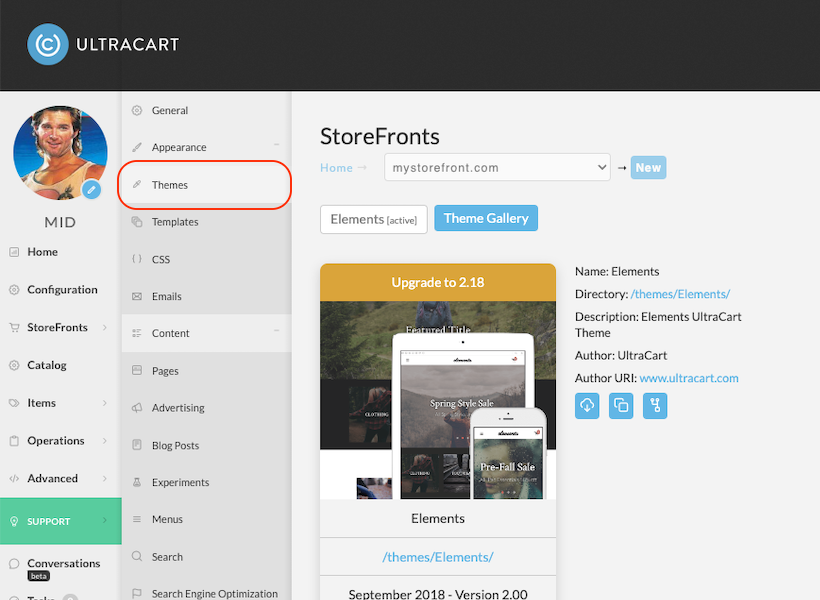
Go to StoreFronts → Themes, under Appearance.
-
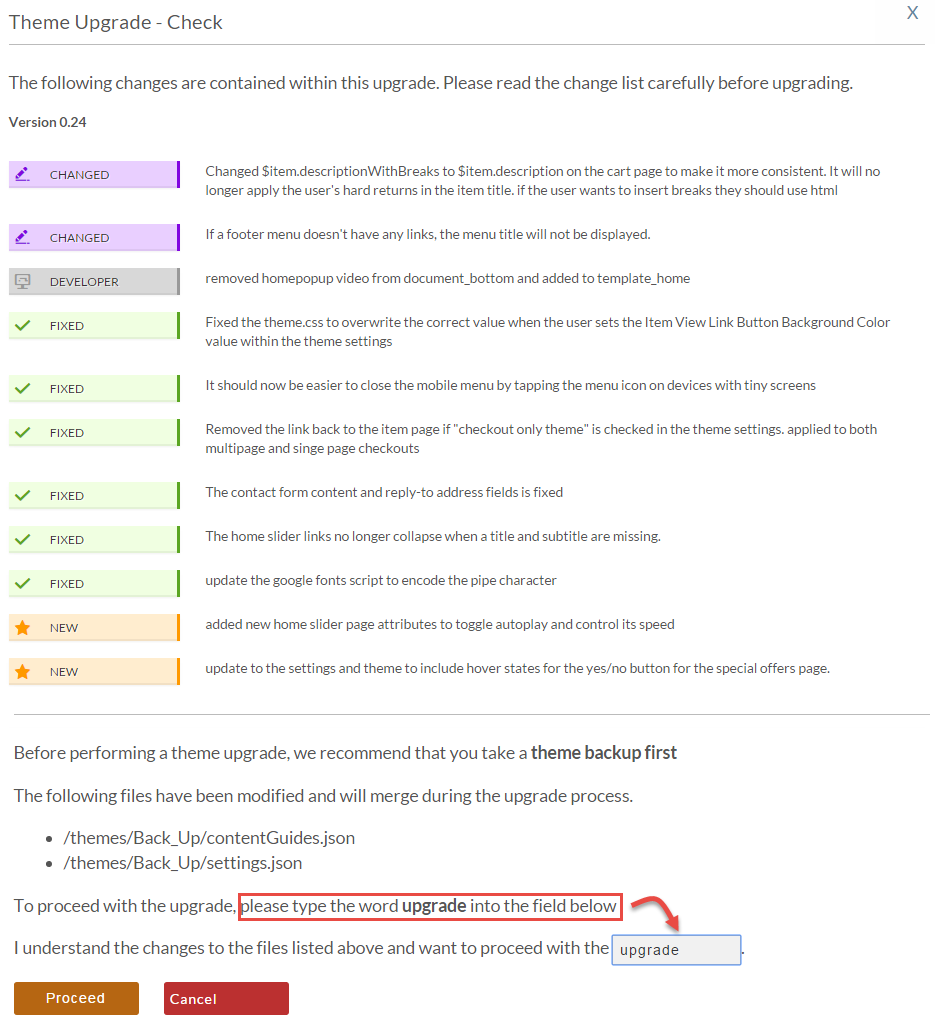
Select Upgrade. The Theme Upgrade - Check screen appears, listing what changed so you can read it before committing.
-
If UltraCart finds no conflicts, continue and the upgrade applies.
A theme can also be upgraded from the General tab, but use the Themes tab instead. Only there do you get the chance to duplicate first.
When the pre-upgrade check finds conflicts
UltraCart checks for merge conflicts before it upgrades anything. If it finds any, you get a warning dialog and the option to Duplicate and Upgrade.
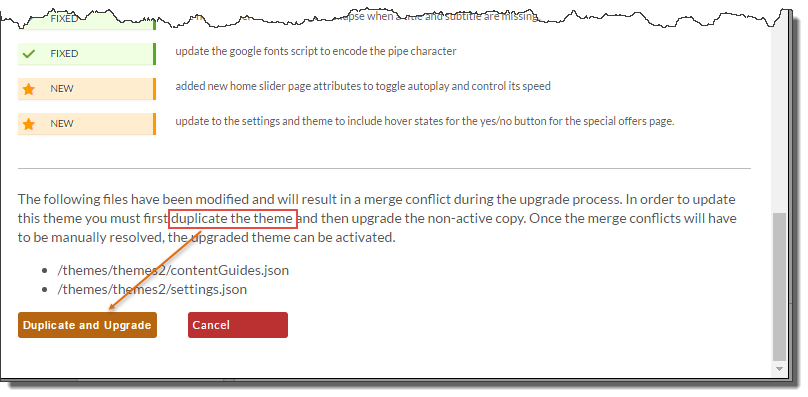
The active theme cannot be upgraded when conflicts are detected. UltraCart forces you to duplicate the theme, upgrade the duplicate, resolve the conflicts there, and activate it once it is right. That is deliberate: it keeps a half-merged theme away from your live site.
Resolve merge conflicts
When you upgrade, UltraCart looks at every file in your theme you have modified and calculates two sets of changes:
- the previous version compared with your modified version
- the previous version compared with the new version
As long as those two sets do not touch the same region of the file, the merge is clean. If you changed line 100 of a template and the theme developer changed line 100 differently, that is a conflict.
The result dialog at the end of an upgrade names the template files in conflict. To resolve them:
-
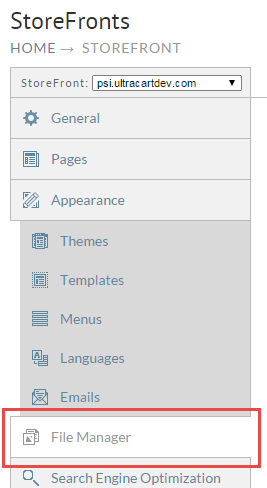
Go to File Manager.
-
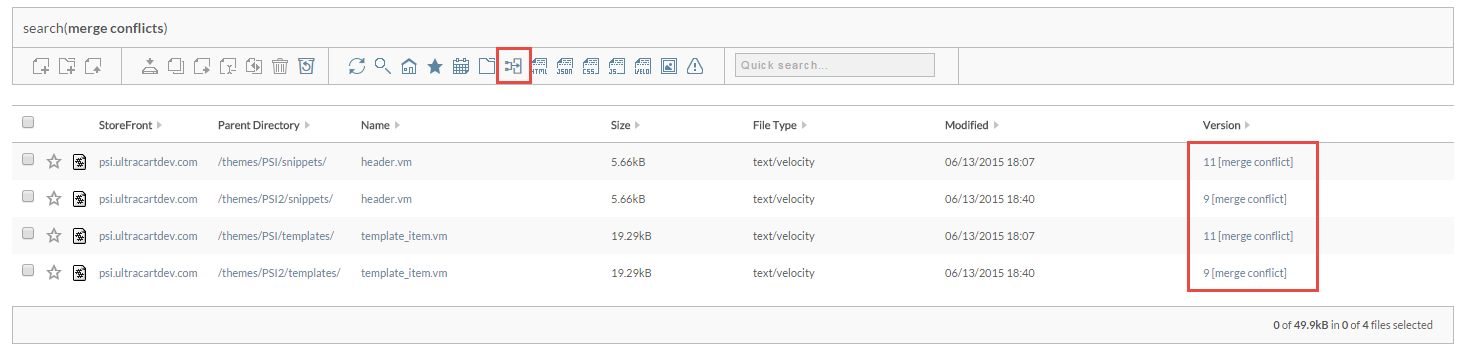
Select the Merge Conflicts search icon in the toolbar. This finds every file in the StoreFront carrying a conflict. Conflicted files also show "merge conflict" in brackets next to their version number.
-
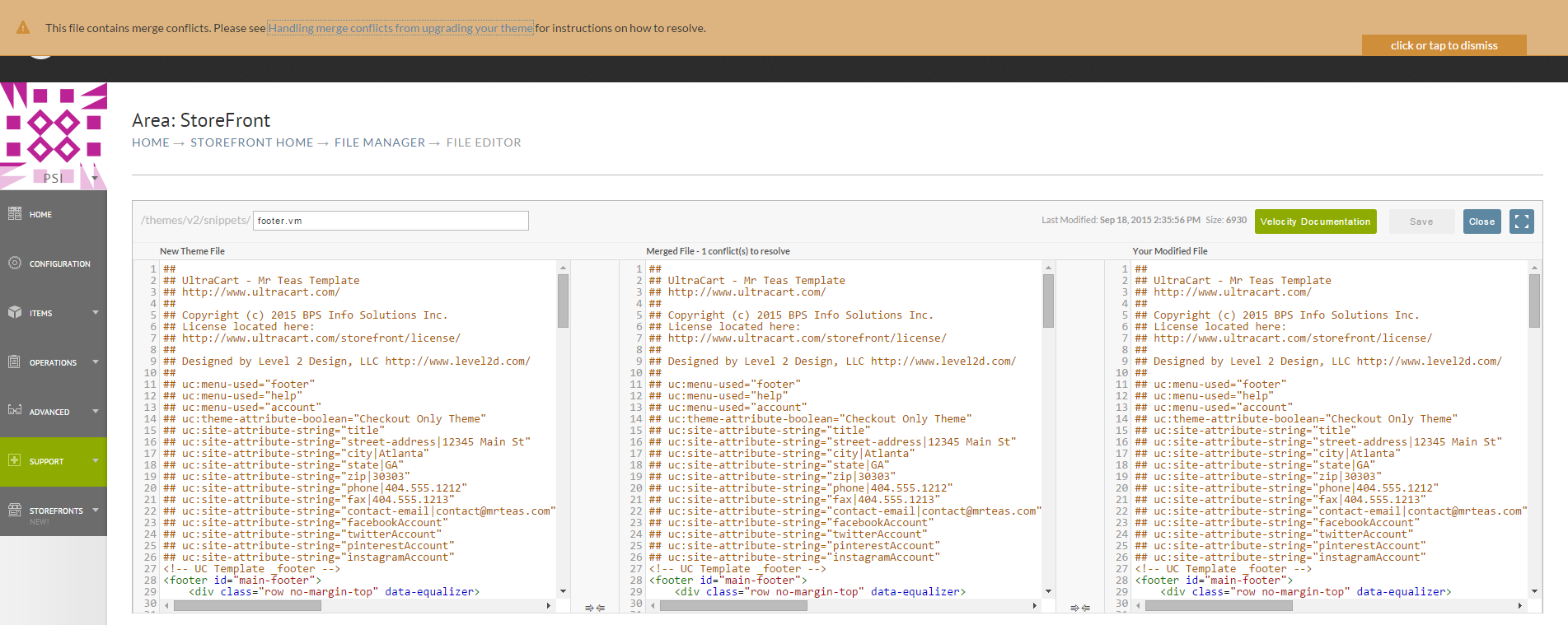
Select a file name to open it in the editor. A warning at the top confirms the file has conflicts. You can dismiss it.
-
The middle pane is the final document, and its header shows how many conflicts remain. Scroll through and resolve each one.
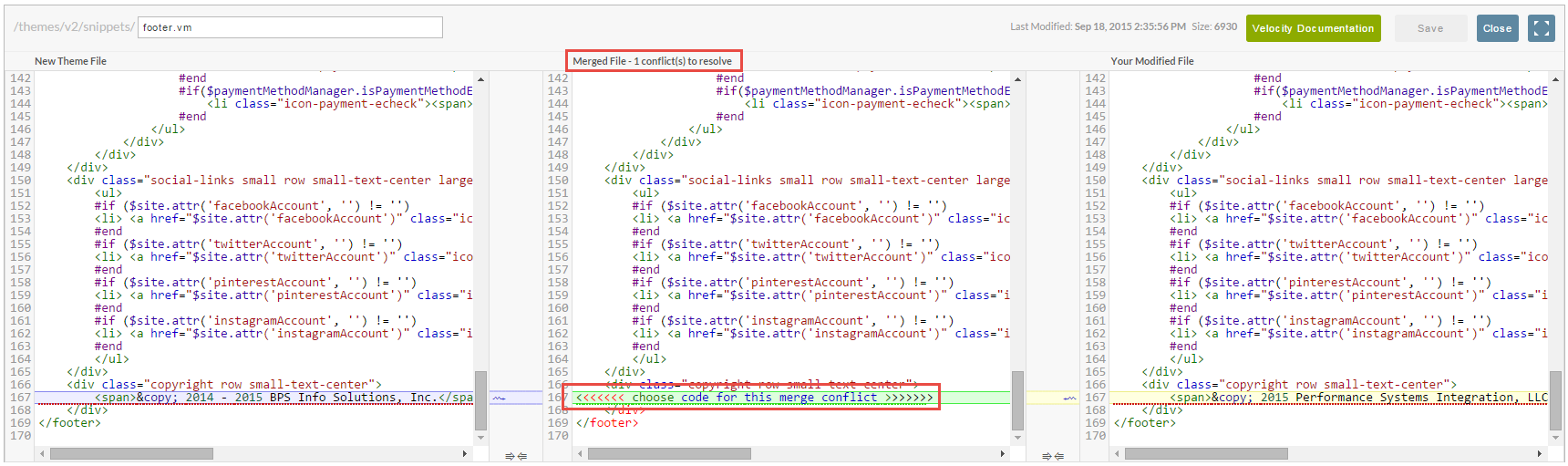
Once every conflict is resolved, activate the upgraded theme.
Review what changed in a template
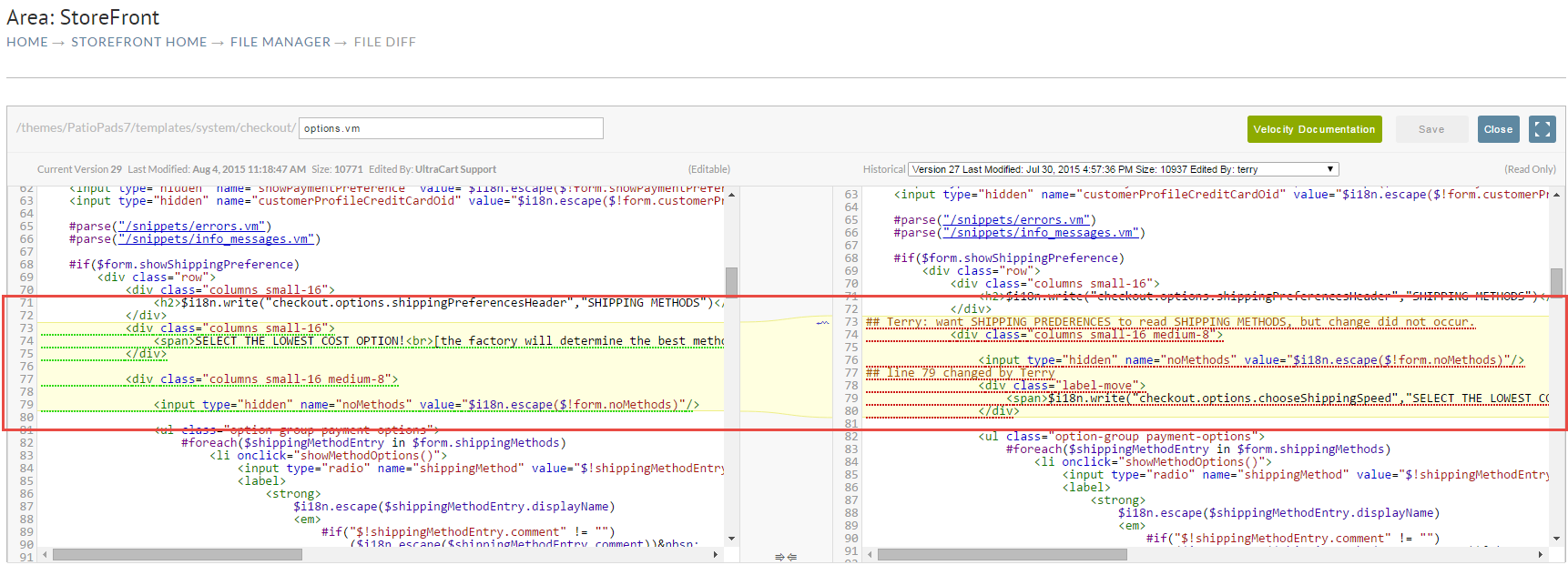
The File Manager keeps version history for every file, which tells you that a template changed, who changed it, and exactly what differs. This is the fastest way to work out why a page started rendering differently.
-
Go to Main Menu → StoreFronts → (your host) → File Manager.
-
Navigate to the file. Theme templates follow this structure:
themes/<active theme folder>/templates/system/checkout/ -
Select the file's version number to open its history. The current version is at the top.
-
Select diff against any earlier version.
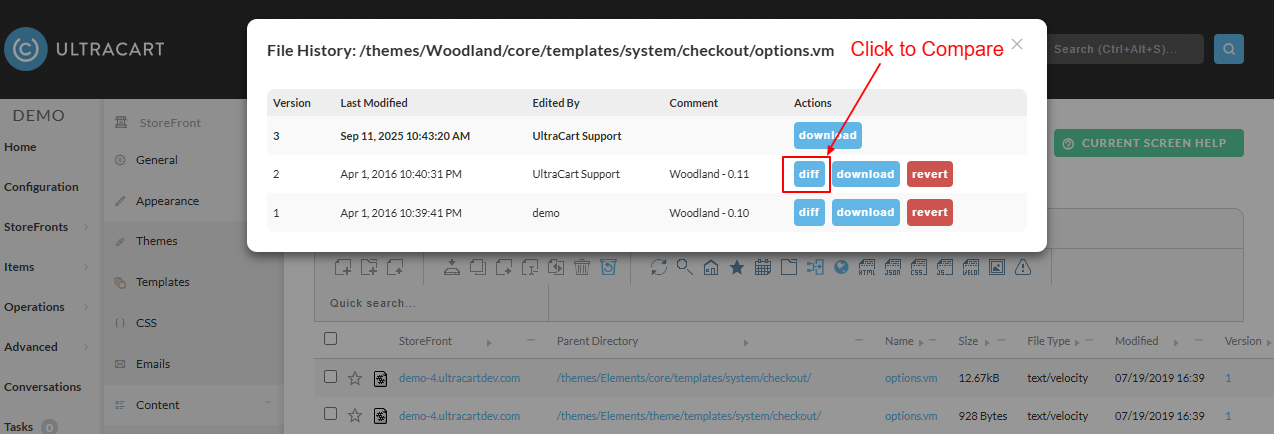
The difference view puts the current version on the left and the earlier one on the right, with changes highlighted. Use the dropdown over the right pane to compare against a different version. You can edit the current version in place and save from here.
A sidebar disappeared from the rendered page
Which tool to reach for depends on where the element is missing.
If the element is gone from the Visual Builder editor as well, something removed it from the page. Use version history above to review the edit and revert the template.
If the element still appears in the editor but not on the rendered page, the template is fine and the problem is configuration. Check the element's settings panel, particularly its visibility settings, and confirm it is set to show on the device sizes you expect: mobile, tablet, and desktop are configured separately.
Next steps
- Theme revision logs tell you what is in an update before you take it.
- Customizing a theme explains why theme settings and CSS overrides survive upgrades while template edits create conflicts.