Configuring Google Analytics
Configuring Google Analytics
UltraCart has the ability to automatically inject Google Analytics (GA4) tracking code into your StoreFront.
The following tutorial will walk you through configuring your Google Analytics account information within your UltraCart account. First navigate to:
Main Menu > StoreFronts > (Your StoreFront Menu) > Privacy & Tracking > Google tab
Now scroll down to the Supported section. This section contains all of the different tracking systems that UltraCart has built in support for.
In this list you will find "Analytics" as shown below. For the tracking type select GA4. As of July 1, 2023 all other Google Analytics tracking types beside GA4 have been discontinued by Google.
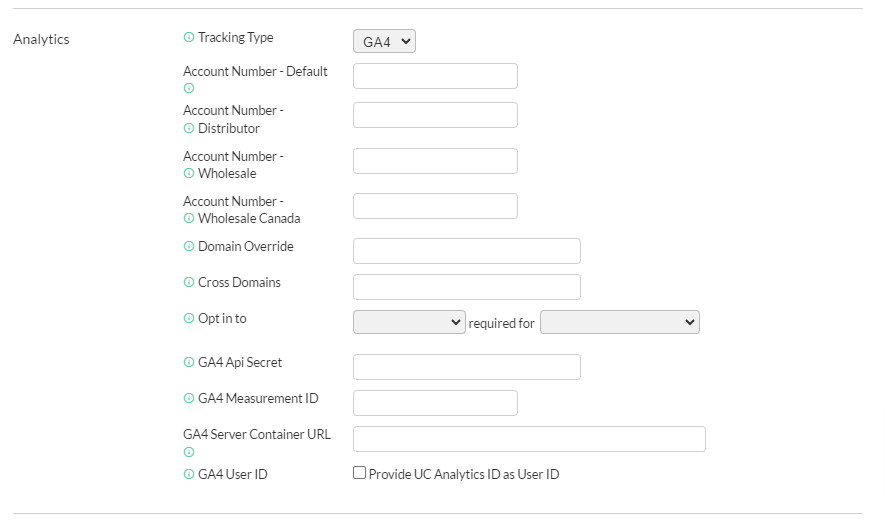
Account Number
Enter the GA4 measurement ID in BOTH the "Account Number - Default" and "GA4 Measurement ID" field. This value should look like G-**************.
Obtaining your GA4 Measurement ID
- In Admin, make sure that you have the desired account and property selected.
- In the _Property _column, click Data Streams, then click your web data stream. Your “G-” Measurement ID appears in the upper right portion of the panel.
Pricing Tiers
If you have pricing tiers configured on your account for wholesale customers then you can track them on a separate Google Analytics account if you would like. There will be an additional row in the configuration for each pricing tier on your store. If you leave these blank then UltraCart will use the default UA- account when tracking the customer even if they have a pricing tier.
Domain Override
By default the system is using MerchantID.ultracartstore.com at the host to the checkout then the GA tracking is set to use that host. If you have a custom SSL then secure.yourdomain.com is passed to the tracking script as .yourdomain.com. This field will provide advanced user the ability to override this on the Google analytics tracking script.
Given that cookies are used to track the checkout progress, it's best if you use a custom SSL so that your checkout and website are on the same root domain.
So for example you would have:
www.yourdomain.com -> MID.yourdomain.com
Then in your GTM or GA tracking you would set the allow domain to ".yourdomain.com". This will allow the GA tracking cookies to be visible on both domains.
If you have two different root domains then on your www.yourdomain.com you're going to have to implement some of the techniques documented on this page.
Cross Domains
If you need cross domain tracking in Google Analytics, enter a comma separated list of domains here. Do not add any spaces.
Example: mydomain.com,another.domain.com
Opt Into
Use the "Opt in to" setting to assign (Drop-down list: Statistics / Preferences / Marketing) required for (Drop-down list: All Customers / EEA Customers / Non-US Customers)
GA4 API Secret
If you want UltraCart to use the Google Measurement API to report offline conversions (such as when the upsell closer finalizes an order) or auto order rebills, configure the GA4 API Secret field.
Obtaining your GA4 API Secret
- First, go to your Google Analytics Admin > Data Streams and open your chosen stream:

- Scroll down to the Additional Settings tab and click on Measurement Protocol API secrets; then click **Create:
**

- You will have to create a nickname for your new API secret; we recommend naming this **GA4-key. **Click Create
- You will need to copy the Secret value provided into the corresponding UltraCart configuration field.
This value is confidential and should only be configured in your UltraCart account. - All done!
GA4 Server Container URL
If you are running your own GA4 server side tracking instance, configure the URL here. UltraCart will pass this to the gtag config as an option. If you don't know what this means, do not configure anything.
GA4 User ID (Provide UC Analytics ID as User ID)
Select this checkbox if you to provide UC Analytics ID as the user ID.
This setting allows the collection of UltraCart Analytics ID in the data that Google Analytics can push into Google Big Query for enhanced analytic tracking data.
GA4 Purchase order_type and item order_type
These two checkboxes tell you whether a purchase came from a subscription. Turn them on if you report on subscription revenue separately from one-time sales.
- GA4 Purchase order_type adds an
order_typeparameter to the purchase event. - GA4 Purchase item order_type adds an
item_order_typeparameter to each item in the purchase.
Both apply to the purchase on the receipt page and to purchases UltraCart sends through the Google Measurement API, including subscription rebills. The refund event for an order carries the same order_type, and each refunded item the same item_order_type, so you can net refunds against revenue by order type.
| Value | order_type means | item_order_type means |
|---|---|---|
subscription | The order that started an auto order | The item is part of the auto order this order started |
subscription rebill | A rebill of an existing auto order | The item was purchased on a rebill |
one time purchase | Any other order | Any other item, including a one-time item bought alongside a new subscription |
Turn on the order type checkboxes
- Navigate to Main Menu > StoreFronts > (Your StoreFront Menu) > Privacy & Tracking > Google tab, and scroll to Analytics.
- Make sure Tracking Type is set to GA4. The GA4 options only appear for that tracking type.
- Select GA4 Purchase order_type, GA4 Purchase item order_type, or both.
- Click Save.
The order_id checkboxes below are turned on the same way.
Register the order type parameters in GA4
GA4 only reports on extra parameters you register as custom dimensions.
- In GA4, go to Admin > Data display > Custom definitions.
- For
order_type, create a custom dimension with scope Event and event parameterorder_type. - For
item_order_type, create a custom dimension with scope Item and item parameteritem_order_type. - Allow 24 to 48 hours for the new dimensions to fill in.
Custom dimensions only cover events received after you create them. GA4 doesn't fill them in for older data.
Once order_type is registered, you can add it to a purchase report to separate subscription rebills from new orders, including the rebills UltraCart sends from its server, which have no page location.
GA4 Purchase order_id and item order_id
GA4 already receives your UltraCart order ID as the purchase event's transaction_id. These checkboxes send the same order ID again under a parameter named order_id, for reports or exports that key on that name.
- GA4 Purchase order_id adds
order_idto the purchase event. - GA4 Purchase item order_id adds
order_idto each item in the purchase.
Both apply only to the purchase on the receipt page. Purchases UltraCart sends through the Google Measurement API do not carry order_id, but they carry the same transaction_id.
GA4 UTM Parameters
Turn on GA4 UTM parameters to send the UTM values UltraCart Analytics recorded for each shopper with every GA4 event UltraCart sends for you. This helps when your traffic starts somewhere GA4 can't see, such as your own content or landing sites running UltraCart Analytics. UltraCart records the UTMs there, but the URL that reaches your StoreFront usually doesn't carry them, so GA4 reports the visit as referral or direct traffic. With this setting on, your GA4 reports can break down each step of the funnel by the campaign UltraCart recorded.
What GA4 receives
With GA4 UTM parameters on, each GA4 event carries up to six extra event parameters: utm_source, utm_medium, utm_campaign, utm_term, utm_content and utm_id.
- Which events: the page view, the StoreFront Visual Builder events listed below, the purchase on the receipt page, and purchases UltraCart sends through the Google Measurement API when the GA4 API Secret is configured.
- Empty values are left out. A parameter UltraCart has no value for is never sent empty.
- "Unspecified" is never sent. UltraCart records the campaign as "Unspecified" when a link has no campaign name, and that placeholder is dropped.
- GA4's own attribution is unchanged. These are extra event parameters. They don't replace or change GA4's "Session source / medium", so your existing reports keep working.
- Whose attribution this is: the values are UltraCart's record of the most recent campaign that brought the shopper since their last order. On a repeat visit through a different channel, they can differ from GA4's session source.
- Long values: GA4 truncates event parameter values over 100 characters, so a very long
utm_contentappears shortened.
For how UltraCart Analytics records UTMs in the first place, see Understanding UTM Collection.
Turn on GA4 UTM parameters
- Navigate to Main Menu > StoreFronts > (Your StoreFront Menu) > Privacy & Tracking > Google tab, and scroll to Analytics.
- Make sure Tracking Type is set to GA4. The GA4 options, including this one, only appear for that tracking type.
- Select the GA4 UTM parameters checkbox ("Adds UltraCart's UTM values to every GA4 event").
- Click Save.
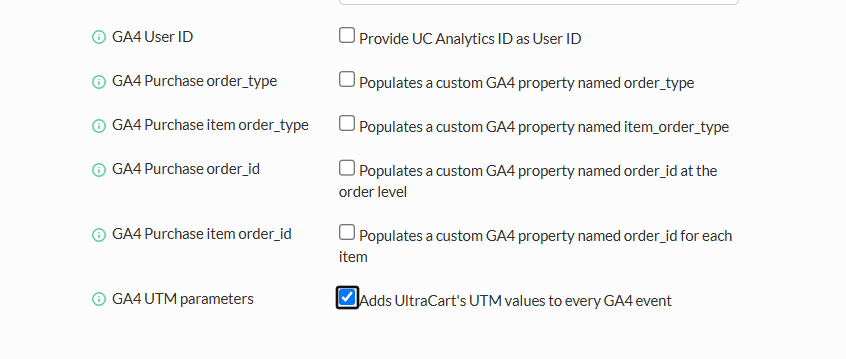
Register the parameters in GA4
GA4 only reports on extra parameters you register as custom dimensions.
- In GA4, go to Admin > Data display > Custom definitions.
- Create a custom dimension with scope Event and event parameter
utm_source. - Repeat for each of the others you want to report on:
utm_medium,utm_campaign,utm_term,utm_contentandutm_id. - Allow 24 to 48 hours for the new dimensions to fill in.
Custom dimensions only cover events received after you create them. GA4 doesn't fill them in for older data.
Check that the parameters arrive
You can confirm the parameters before the custom dimensions fill in:
- In your browser's developer tools, open the Network tab and filter on
collect. Each GA4 request shows parameters such asep.utm_source=facebook. - In GA4, open Admin > DebugView and select any event to see its parameters.
- For purchases UltraCart sends through the Google Measurement API, the request body in the integration log for the Google Measurement integration shows the
utm_*keys.
If you run GA4 through your own Google Tag Manager container instead, use the separate UTM parameters setting in the Tag Manager section. See Google Tag Manager.
GA4 funnel_hostname
Turn on GA4 funnel_hostname to send, with every GA4 event, the hostname of the site where UltraCart Analytics first saw the shopper. This helps when several sites feed one checkout. GA4's own hostname is the page the event happened on, so once shoppers cross into a shared checkout domain, every checkout event and purchase shows that domain. Purchases UltraCart sends from its server, such as subscription rebills, have no page at all and show as (not set). With this setting on, you can credit each sale to the site where the shopper started.
For example, a shopper reads an article on www.example-blog.com on Monday, returns on Tuesday through shop.example.com, and checks out on your shared checkout domain. Every GA4 event in that journey, the purchase, and every rebill of the subscription they started carry funnel_hostname = www.example-blog.com.
What GA4 receives
With GA4 funnel_hostname on, GA4 events carry one extra event parameter, funnel_hostname.
- The value: the hostname of the first page UltraCart Analytics recorded for the shopper since their last order, looking back across their earlier visits. A site only counts if it runs UltraCart Analytics. UltraCart never fills the value from the referrer, so search engines and ad networks never appear. UltraCart's own hosts, such as
secure.ultracart.com, are skipped. - Set once per cart: UltraCart records the value on the shopper's cart and doesn't change it afterward, so it keeps pointing at the start of the journey while the shopper moves to your checkout domain. The value is saved with the order.
- Which events: the page view and the StoreFront Visual Builder events listed below, the purchase on the receipt page, and, when the GA4 API Secret is configured, purchases and refunds UltraCart sends through the Google Measurement API.
- Subscription rebills: each rebill carries the value saved on the order that started the subscription, and so does a refund of a rebill. Subscriptions started before you turned the setting on have no saved value, so their rebills are sent without
funnel_hostname. - Empty values are left out. Pages viewed before the shopper has a cart, and shoppers UltraCart Analytics hasn't recorded a page view for, don't carry the parameter.
- GA4's own hostname is unchanged. This is an extra event parameter. It doesn't replace GA4's "Hostname" dimension, so your existing reports keep working.
Turn on GA4 funnel_hostname
- Navigate to Main Menu > StoreFronts > (Your StoreFront Menu) > Privacy & Tracking > Google tab, and scroll to Analytics.
- Make sure Tracking Type is set to GA4. The GA4 options, including this one, only appear for that tracking type.
- Select the GA4 funnel_hostname checkbox ("Adds the host where UltraCart Analytics first saw the shopper to every GA4 event, including rebills and refunds").
- Click Save.
Install UltraCart Analytics on every site that starts your shoppers' journeys, such as content and landing sites outside your StoreFront. A site without it is invisible to UltraCart, so the value falls back to the first site that does run it. See Using UltraCart Analytics.
Register funnel_hostname in GA4
- In GA4, go to Admin > Data display > Custom definitions.
- Create a custom dimension with scope Event and event parameter
funnel_hostname. - Allow 24 to 48 hours for the new dimension to fill in.
Custom dimensions only cover events received after you create them. GA4 doesn't fill them in for older data.
To check that the parameter arrives before the dimension fills in, filter your browser's Network tab on collect and look for ep.funnel_hostname, or open Admin > DebugView in GA4. For purchases and refunds UltraCart sends through the Google Measurement API, the request body in the integration log for the Google Measurement integration shows funnel_hostname.
If you run GA4 through your own Google Tag Manager container instead, use the separate funnel_hostname setting in the Tag Manager section. See Google Tag Manager.
Supported GA4 Events for all Themes
| Event | What triggers the event |
|---|---|
| page_view | When a page is viewed in the StoreFront or checkout |
| purchase | When a purchase occurs and the customer views the receipt. If the customer abandons the upsell sequence and the order is generated by the upsell closer, then those purchase events are reported through the Google Measurement protocol if the GA4 API key is configured. |
What the GA4 purchase event contains
GA4's transaction_id is your UltraCart order ID, such as DEMO-0000123. That holds wherever the purchase comes from: the receipt page, a purchase UltraCart sends through the Google Measurement API, and the refund event for that order. Because the value is the same everywhere, you can match a GA4 transaction to the order in UltraCart, and GA4 can match a refund to its purchase. GA4 also uses transaction_id to drop a duplicate purchase, for example when a shopper reloads the receipt page.
The purchase on the receipt page carries these parameters:
| Parameter | Value |
|---|---|
transaction_id | The UltraCart order ID |
value | The order total |
tax | The order's tax |
shipping | The order's shipping and handling total |
currency | Your account's base currency |
affiliation | Your UltraCart merchant ID |
coupon | The first coupon code on the order, when the order has one |
new_customer | true when this is the only order placed with the customer's email address, otherwise false |
items | One entry per item, with item_id, item_name, price (the unit price after order discounts), currency and quantity |
order_type, order_id | Only when the matching checkbox is on. See GA4 Purchase order_type and item order_type and GA4 Purchase order_id and item order_id. |
The page also sends the six utm_* parameters when GA4 UTM parameters is on, and funnel_hostname when GA4 funnel_hostname is on.
Receipt page or server, never both
Each order's purchase reaches GA4 once. Normally the receipt page sends it, and the Google Measurement API covers only orders the shopper never sees a receipt for, such as upsell closer orders and subscription rebills.
UltraCart support can also switch your account to send every purchase from the server through the Google Measurement API instead of from the receipt page. This requires the GA4 API Secret. The receipt page then sends no purchase event, and transaction_id is still the UltraCart order ID.
A purchase sent through the Google Measurement API needs the shopper's Google Analytics client ID, which UltraCart records with the order at checkout. If no client ID was recorded, for example because the shopper's browser blocked Google Analytics, UltraCart doesn't send a server-side purchase for that order.
Supported GA4 Events in StoreFront Visual Builder Themes
| Event | What triggers the event |
|---|---|
| add_payment_info | When the credit card number field is populated during the checkout. |
| add_shipping_info | When a shipping method is selected during the checkout |
| add_to_cart | When a customer adds an item to the cart |
| add_to_wishlist | When a customer adds an item to their wishlist |
| begin_checkout | When the customer begins filling out inputs in the checkout form or interacts with an alternate payment method such as PayPal, Apple Pay or Google Pay |
| login | When the customer logs into their customer profile during the checkout or in the MyAccount area. |
| remove_from_cart | When the customer removes an item from their cart by setting the quantity to zero or clicking a remove button. |
| search | When the customer enters a search phrase |
| select_promotion | When the customer accepts an upsell after offer. |
| signup | When the customer registers for a profile during the checkout or through the MyAccount signup form. |
| view_cart | When the customer views the items in their cart during the checkout |
| view_item | When the customer views a specific item within a StoreFront |
| view_item_list | When the customer views a list of items. This can include related items in the checkout, a group of items, search results, etc. |
| view_promotion | When the customer views an upsell after offer. |
Non-Visual Builder themes do not have built in support for the events above. Those themes include: Mr Teas, Craft, Natural, Woodland, Gridzy, Fashion and Coffee.
Supported GA4 Events when the GA4 API is Configured
| Event | What triggers the event |
|---|---|
| earn_virtual_currency | When a customer earns a cashback award through the Loyalty Program |
| purchase | When a purchase occurs offline (i.e the customer does not see the receipt because the order is created by the upsell closer or a subscription rebill) |
| refund | When a refund occurs on an order. Since this is an offline operation, it can only be reported through the GA4 API. |
| spend_virtual_currency | When a customer redeems a cashback award through the Loyalty Program |
Frequently Asked Questions
Q: Is the UltraCart order ID sent as GA4's transaction_id?
A: Yes. Every GA4 purchase UltraCart sends, from the receipt page or through the Google Measurement API, uses the UltraCart order ID as transaction_id. Refunds use the same value. See What the GA4 purchase event contains.
To check it:
- Receipt page: open Admin > DebugView in GA4, place an order, and select the
purchaseevent to see itstransaction_id. You can also open your browser's developer tools, filter the Network tab oncollect, and inspect the purchase request. - Google Measurement API: the request body in the integration log for the Google Measurement integration shows
transaction_id.
Q: If I use the GA4 measurement API, will the events associate with the GA4 session?
A: Purchases do; refunds and loyalty virtual currency events don't.
- Purchases: UltraCart captures the session ID from the shopper's _ga_
cookie, where the container ID is your GA4 Measurement ID without the G-. It sends that session ID, withengagement_time_msec, on purchases sent through the Google Measurement API, so GA4 ties each purchase to the shopper's session. If the cookie wasn't captured, for example because the shopper's browser blocked it, the purchase is still sent without a session ID. - Refunds and virtual currency events (
refund,earn_virtual_currency,spend_virtual_currency) don't carry a session ID, so GA4 doesn't associate them with a session.
You can see the session_id on each purchase request in the integration logs for the Google Measurement integration.
Q: Can I track a GA4 session across multiple domains like www.mydomain.com and secure.mydomain.com
A: Yes, make sure that you configure GA4 for cross domain functionality. Also we recommend deploying UltraCart Analytics to your external site so that UltraCart can observe the entire session end-to-end and collect necessary identifiers to drive the Google Measurement API.